This page provides an overview of all the folder and file conventions in Next.js, and recommendations for organizing your project.
Folder and file conventions
Top-level folders
Top-level folders are used to organize your application's code and static assets.
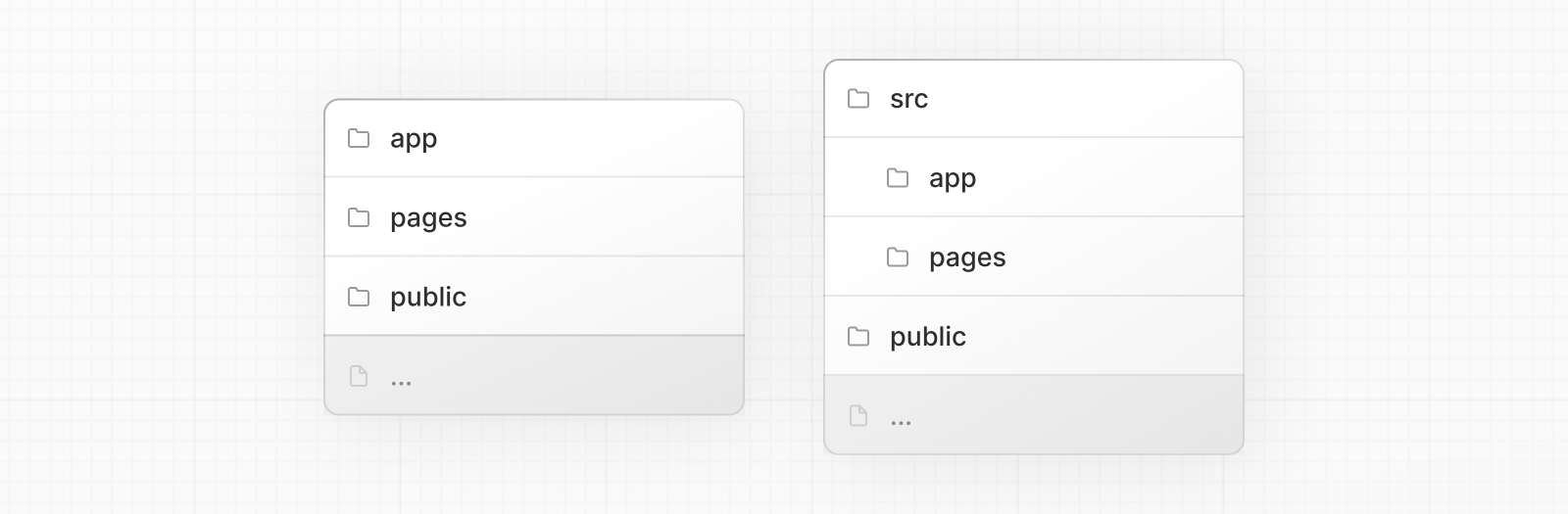
app | App Router |
pages | Pages Router |
public | Static assets to be served |
src | Optional application source folder |
Top-level files
Top-level files are used to configure your application, manage dependencies, run proxy, integrate monitoring tools, and define environment variables.
| Next.js | |
next.config.js | Configuration file for Next.js |
package.json | Project dependencies and scripts |
instrumentation.ts | OpenTelemetry and Instrumentation file |
proxy.ts | Next.js request proxy |
.env | Environment variables (should not be tracked by version control) |
.env.local | Local environment variables (should not be tracked by version control) |
.env.production | Production environment variables (should not be tracked by version control) |
.env.development | Development environment variables (should not be tracked by version control) |
eslint.config.mjs | Configuration file for ESLint |
.gitignore | Git files and folders to ignore |
next-env.d.ts | TypeScript declaration file for Next.js (should not be tracked by version control) |
tsconfig.json | Configuration file for TypeScript |
jsconfig.json | Configuration file for JavaScript |
Routing Files
Add page to expose a route, layout for shared UI such as header, nav, or footer, loading for skeletons, error for error boundaries, and route for APIs.
layout | .js .jsx .tsx | Layout |
page | .js .jsx .tsx | Page |
loading | .js .jsx .tsx | Loading UI |
not-found | .js .jsx .tsx | Not found UI |
error | .js .jsx .tsx | Error UI |
global-error | .js .jsx .tsx | Global error UI |
route | .js .ts | API endpoint |
template | .js .jsx .tsx | Re-rendered layout |
default | .js .jsx .tsx | Parallel route fallback page |
Nested routes
Folders define URL segments. Nesting folders nests segments. Layouts at any level wrap their child segments. A route becomes public when a page or route file exists.
| Path | URL pattern | Notes |
|---|---|---|
app/layout.tsx | — | Root layout wraps all routes |
app/blog/layout.tsx | — | Wraps /blog and descendants |
app/page.tsx | / | Public route |
app/blog/page.tsx | /blog | Public route |
app/blog/authors/page.tsx | /blog/authors | Public route |
Dynamic routes
Parameterize segments with square brackets. Use [segment] for a single param, [...segment] for catch‑all, and [[...segment]] for optional catch‑all. Access values via the params prop.
| Path | URL pattern |
|---|---|
app/blog/[slug]/page.tsx | /blog/my-first-post |
app/shop/[...slug]/page.tsx | /shop/clothing, /shop/clothing/shirts |
app/docs/[[...slug]]/page.tsx | /docs, /docs/layouts-and-pages, /docs/api-reference/use-router |
Route groups and private folders
Organize code without changing URLs with route groups (group), and colocate non-routable files with private folders _folder.
| Path | URL pattern | Notes |
|---|---|---|
app/(marketing)/page.tsx | / | Group omitted from URL |
app/(shop)/cart/page.tsx | /cart | Share layouts within (shop) |
app/blog/_components/Post.tsx | — | Not routable; safe place for UI utilities |
app/blog/_lib/data.ts | — | Not routable; safe place for utils |
Parallel and Intercepted Routes
These features fit specific UI patterns, such as slot-based layouts or modal routing.
Use @slot for named slots rendered by a parent layout. Use intercept patterns to render another route inside the current layout without changing the URL, for example, to show a details view as a modal over a list.
| Pattern (docs) | Meaning | Typical use case |
|---|---|---|
@folder | Named slot | Sidebar + main content |
(.)folder | Intercept same level | Preview sibling route in a modal |
(..)folder | Intercept parent | Open a child of the parent as an overlay |
(..)(..)folder | Intercept two levels | Deeply nested overlay |
(...)folder | Intercept from root | Show arbitrary route in current view |
Metadata file conventions
App icons
favicon | .ico | Favicon file |
icon | .ico .jpg .jpeg .png .svg | App Icon file |
icon | .js .ts .tsx | Generated App Icon |
apple-icon | .jpg .jpeg, .png | Apple App Icon file |
apple-icon | .js .ts .tsx | Generated Apple App Icon |
Open Graph and Twitter images
opengraph-image | .jpg .jpeg .png .gif | Open Graph image file |
opengraph-image | .js .ts .tsx | Generated Open Graph image |
twitter-image | .jpg .jpeg .png .gif | Twitter image file |
twitter-image | .js .ts .tsx | Generated Twitter image |
SEO
sitemap | .xml | Sitemap file |
sitemap | .js .ts | Generated Sitemap |
robots | .txt | Robots file |
robots | .js .ts | Generated Robots file |
Organizing your project
Next.js is unopinionated about how you organize and colocate your project files. But it does provide several features to help you organize your project.
Component hierarchy
The components defined in special files are rendered in a specific hierarchy:
layout.jstemplate.jserror.js(React error boundary)loading.js(React suspense boundary)not-found.js(React error boundary for "not found" UI)page.jsor nestedlayout.js
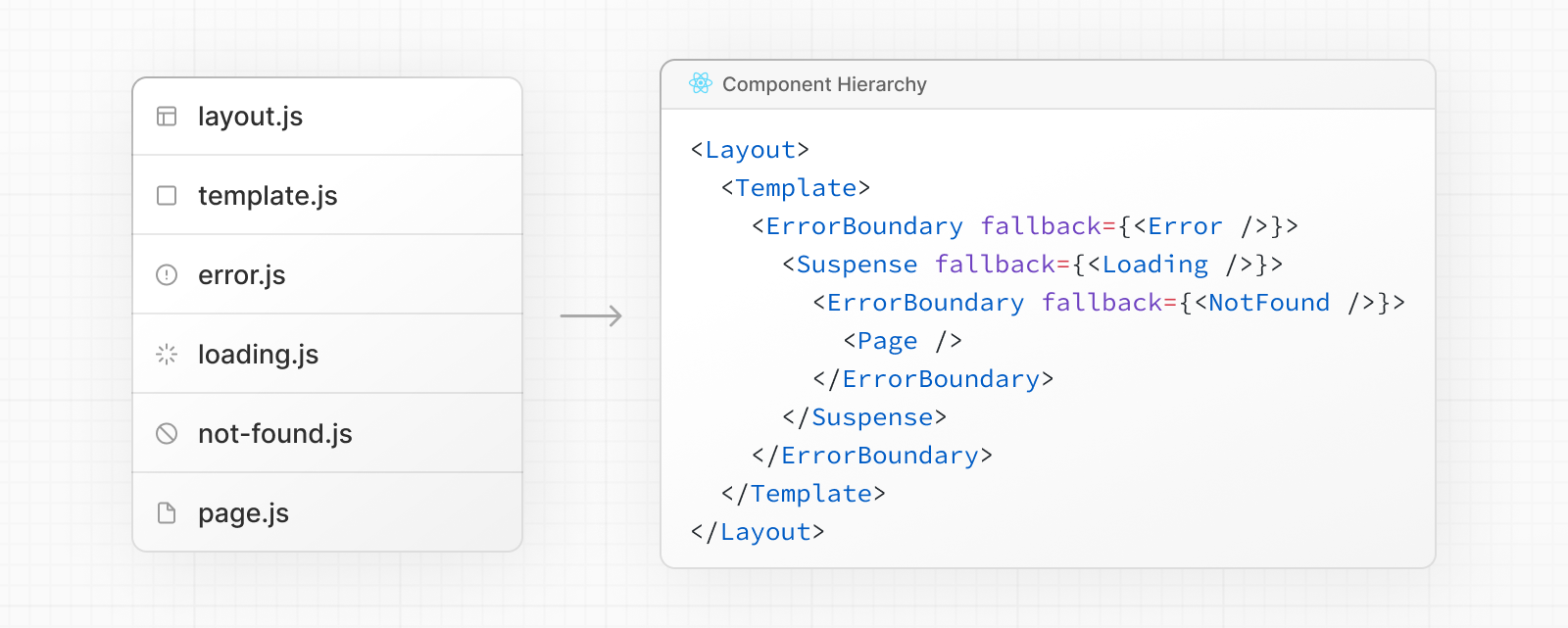
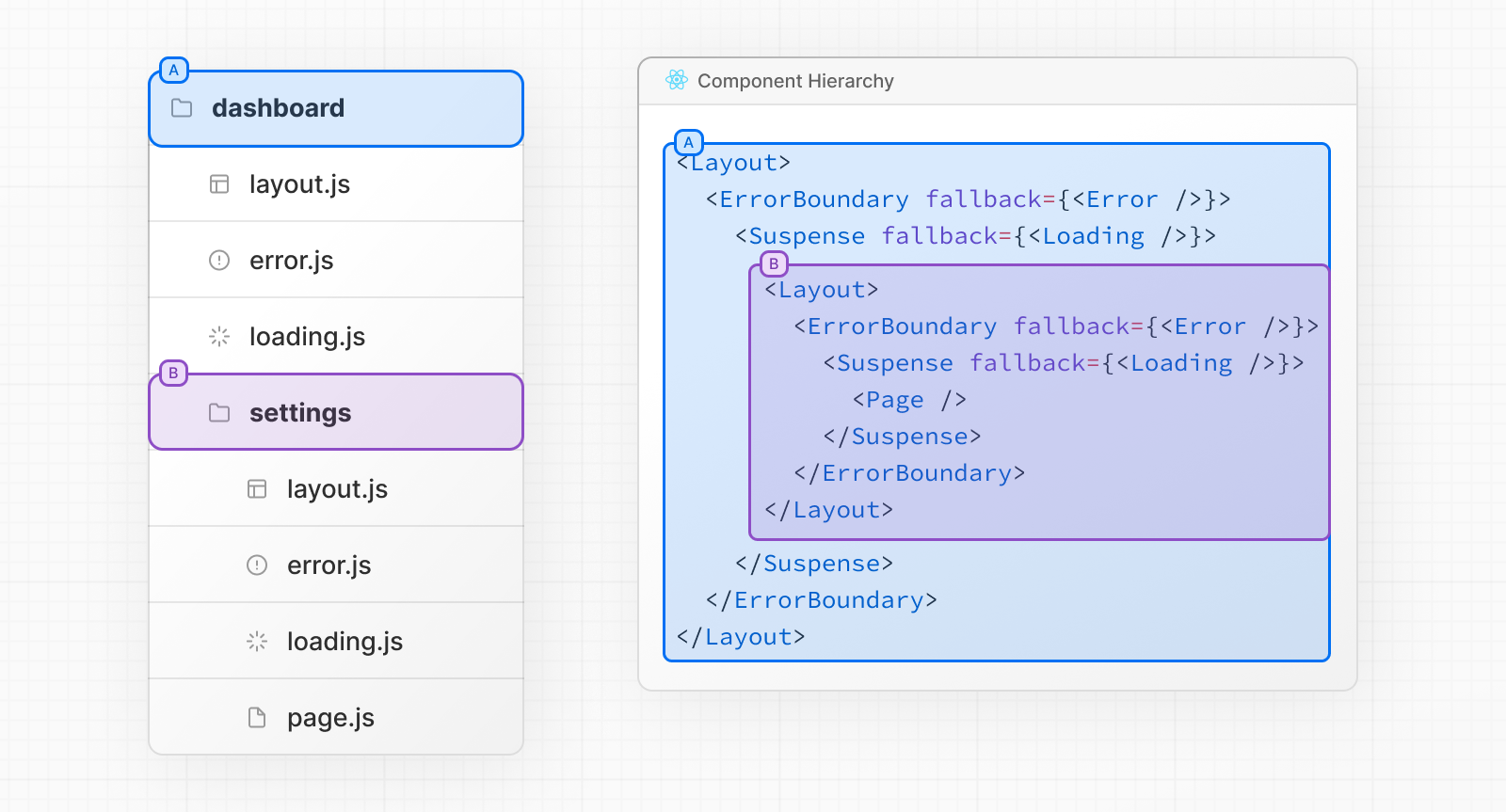
The components are rendered recursively in nested routes, meaning the components of a route segment will be nested inside the components of its parent segment.
Colocation
In the app directory, nested folders define route structure. Each folder represents a route segment that is mapped to a corresponding segment in a URL path.
However, even though route structure is defined through folders, a route is not publicly accessible until a page.js or route.js file is added to a route segment.
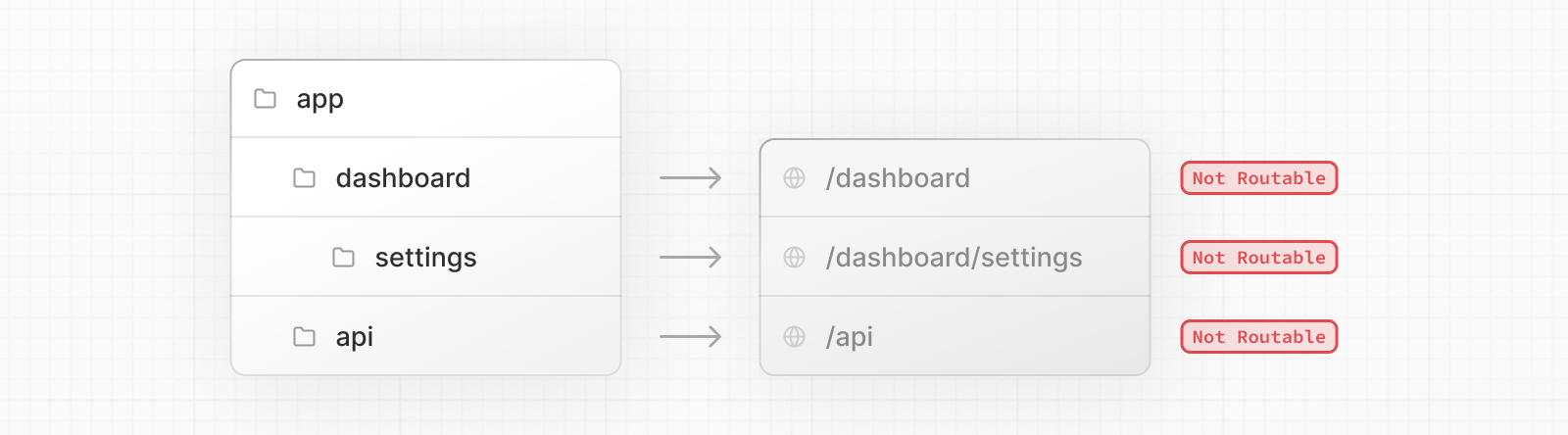
And, even when a route is made publicly accessible, only the content returned by page.js or route.js is sent to the client.
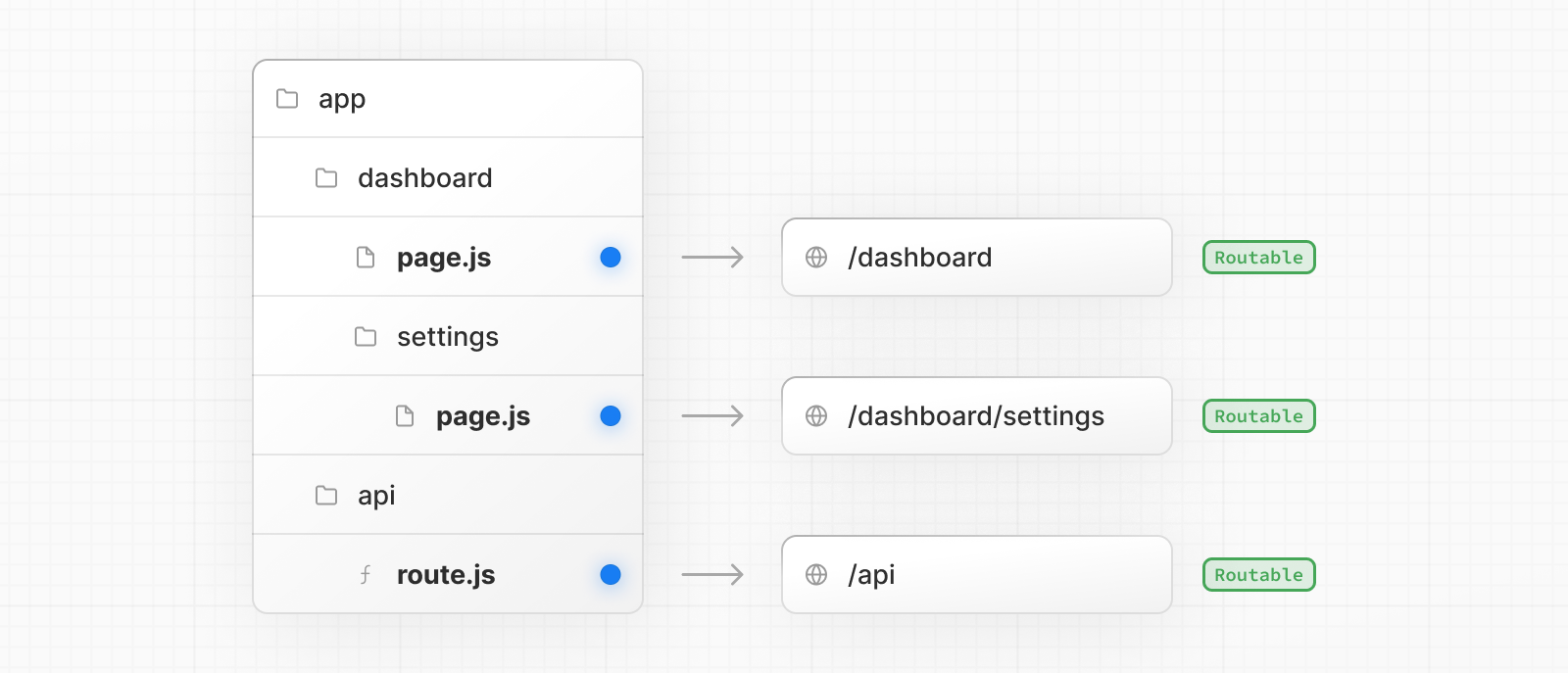
This means that project files can be safely colocated inside route segments in the app directory without accidentally being routable.
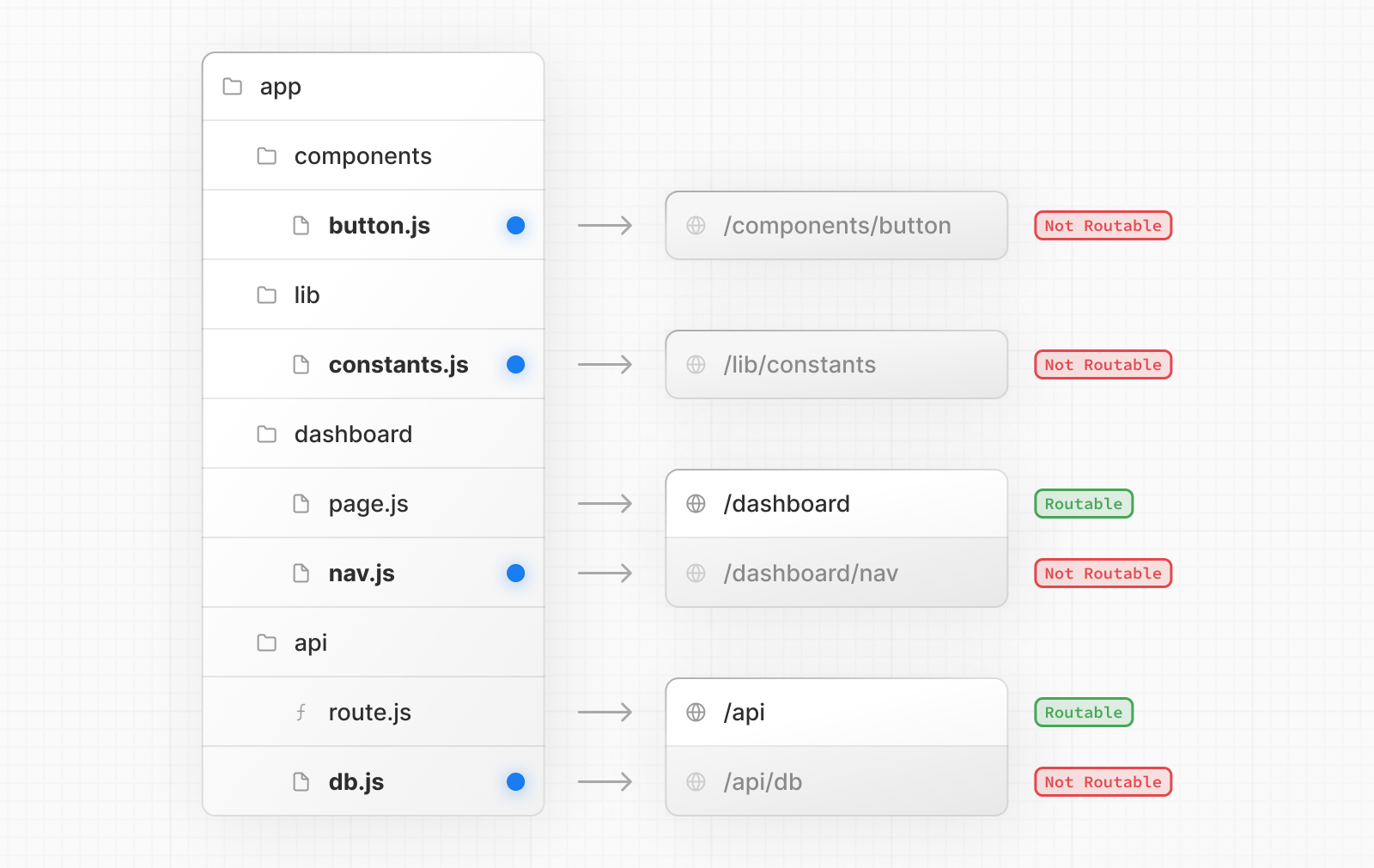
Good to know: While you can colocate your project files in
appyou don't have to. If you prefer, you can keep them outside theappdirectory.
Private folders
Private folders can be created by prefixing a folder with an underscore: _folderName
This indicates the folder is a private implementation detail and should not be considered by the routing system, thereby opting the folder and all its subfolders out of routing.
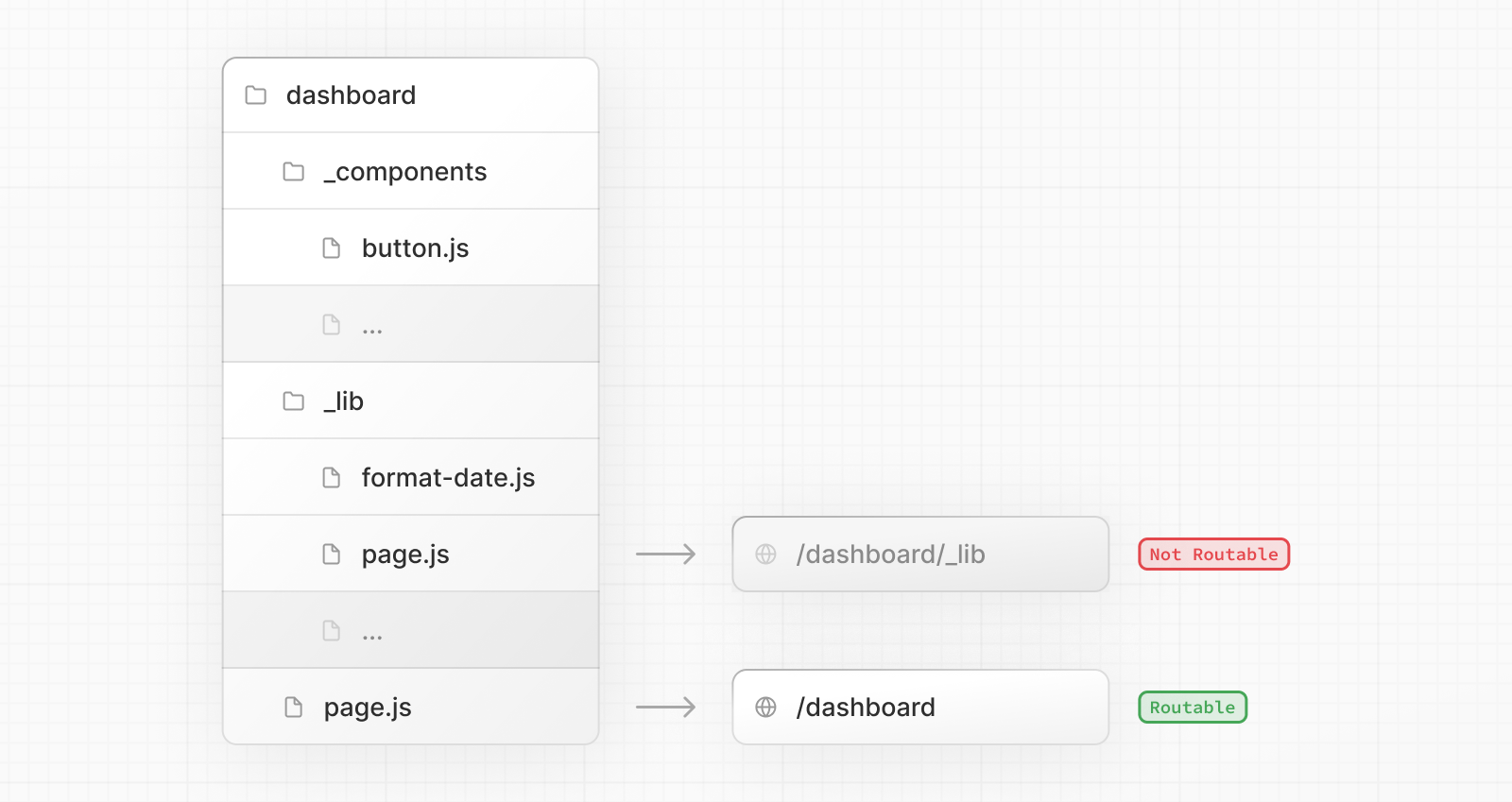
Since files in the app directory can be safely colocated by default, private folders are not required for colocation. However, they can be useful for:
- Separating UI logic from routing logic.
- Consistently organizing internal files across a project and the Next.js ecosystem.
- Sorting and grouping files in code editors.
- Avoiding potential naming conflicts with future Next.js file conventions.
Good to know:
- While not a framework convention, you might also consider marking files outside private folders as "private" using the same underscore pattern.
- You can create URL segments that start with an underscore by prefixing the folder name with
%5F(the URL-encoded form of an underscore):%5FfolderName.- If you don't use private folders, it would be helpful to know Next.js special file conventions to prevent unexpected naming conflicts.
Route groups
Route groups can be created by wrapping a folder in parenthesis: (folderName)
This indicates the folder is for organizational purposes and should not be included in the route's URL path.
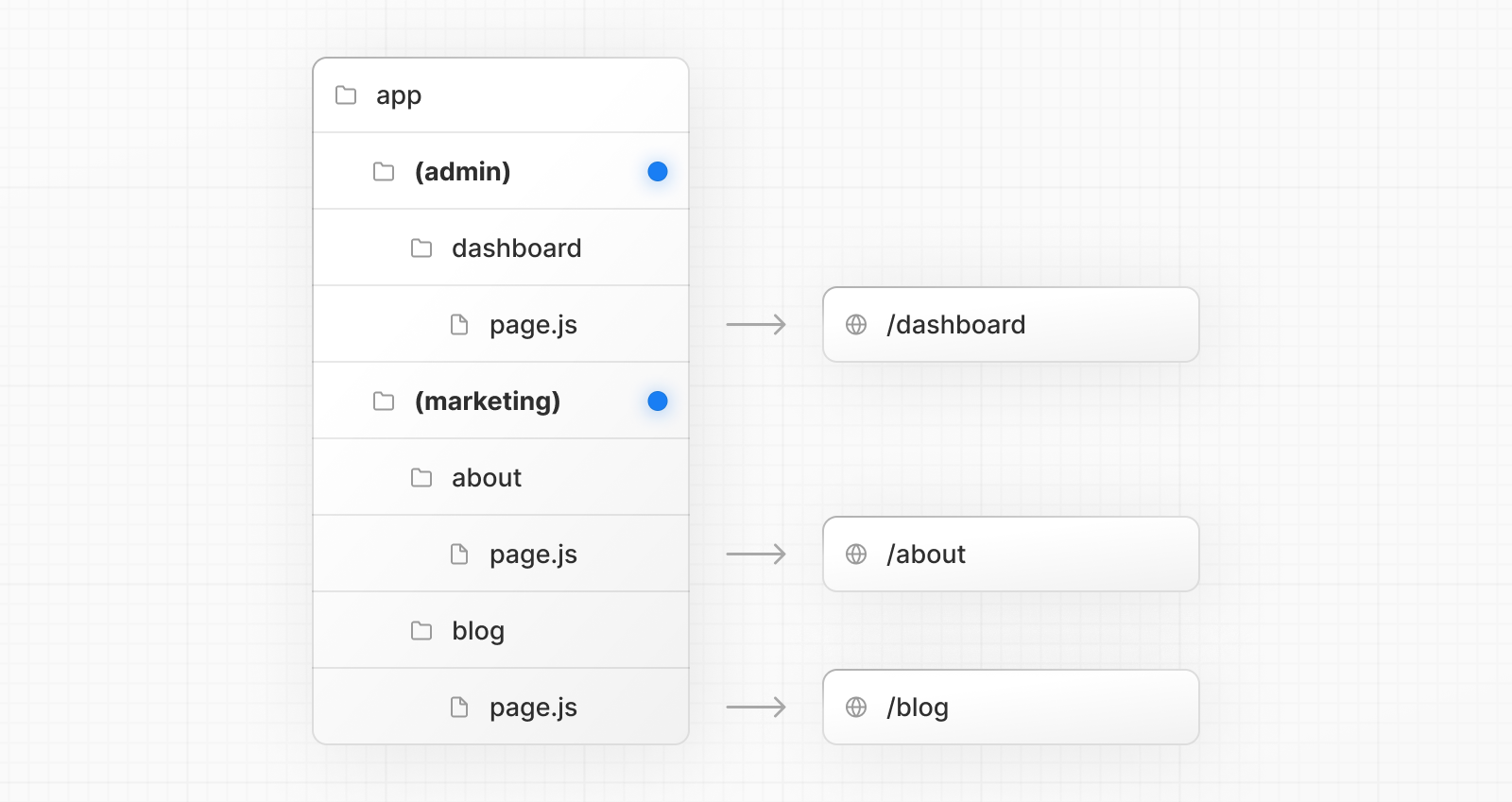
Route groups are useful for:
- Organizing routes by site section, intent, or team. e.g. marketing pages, admin pages, etc.
- Enabling nested layouts in the same route segment level:
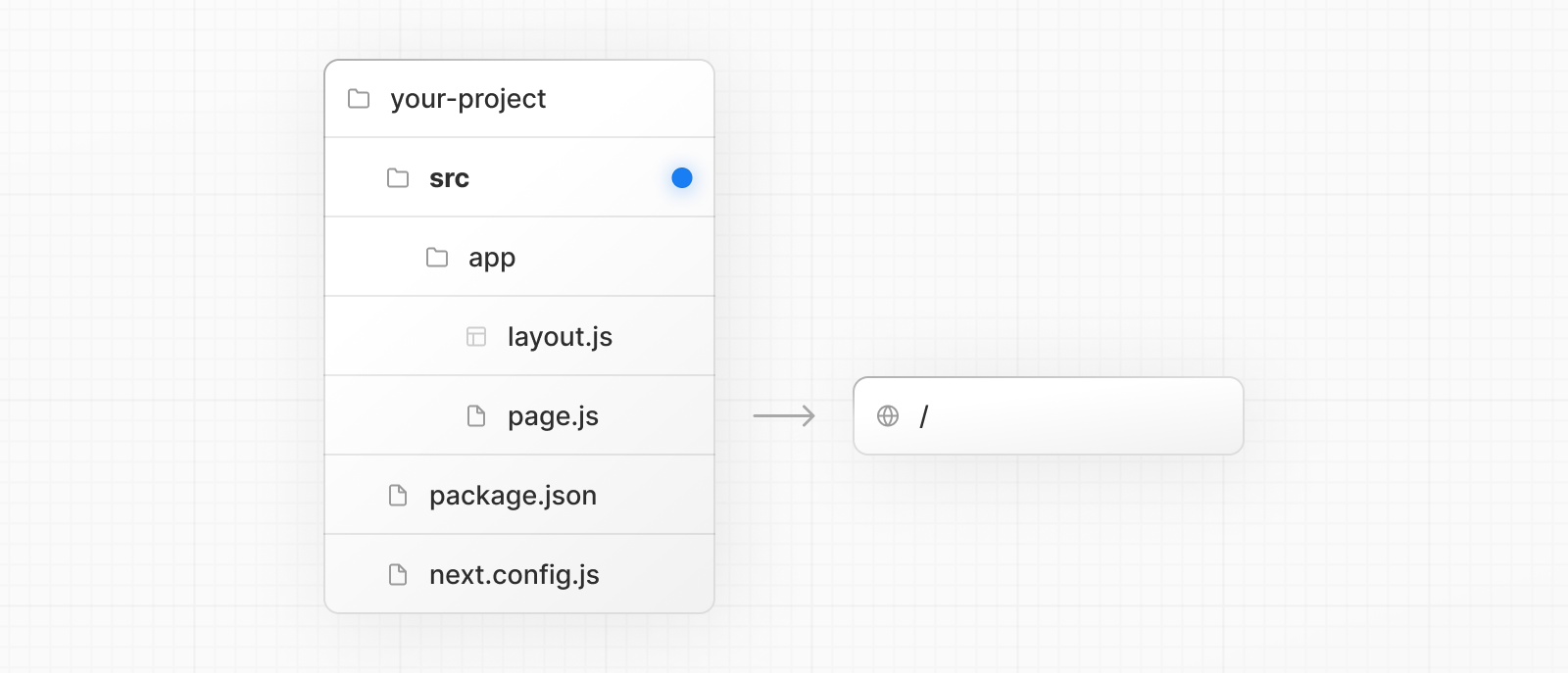
src folder
Next.js supports storing application code (including app) inside an optional src folder. This separates application code from project configuration files which mostly live in the root of a project.
Examples
The following section lists a very high-level overview of common strategies. The simplest takeaway is to choose a strategy that works for you and your team and be consistent across the project.
Good to know: In our examples below, we're using
componentsandlibfolders as generalized placeholders, their naming has no special framework significance and your projects might use other folders likeui,utils,hooks,styles, etc.
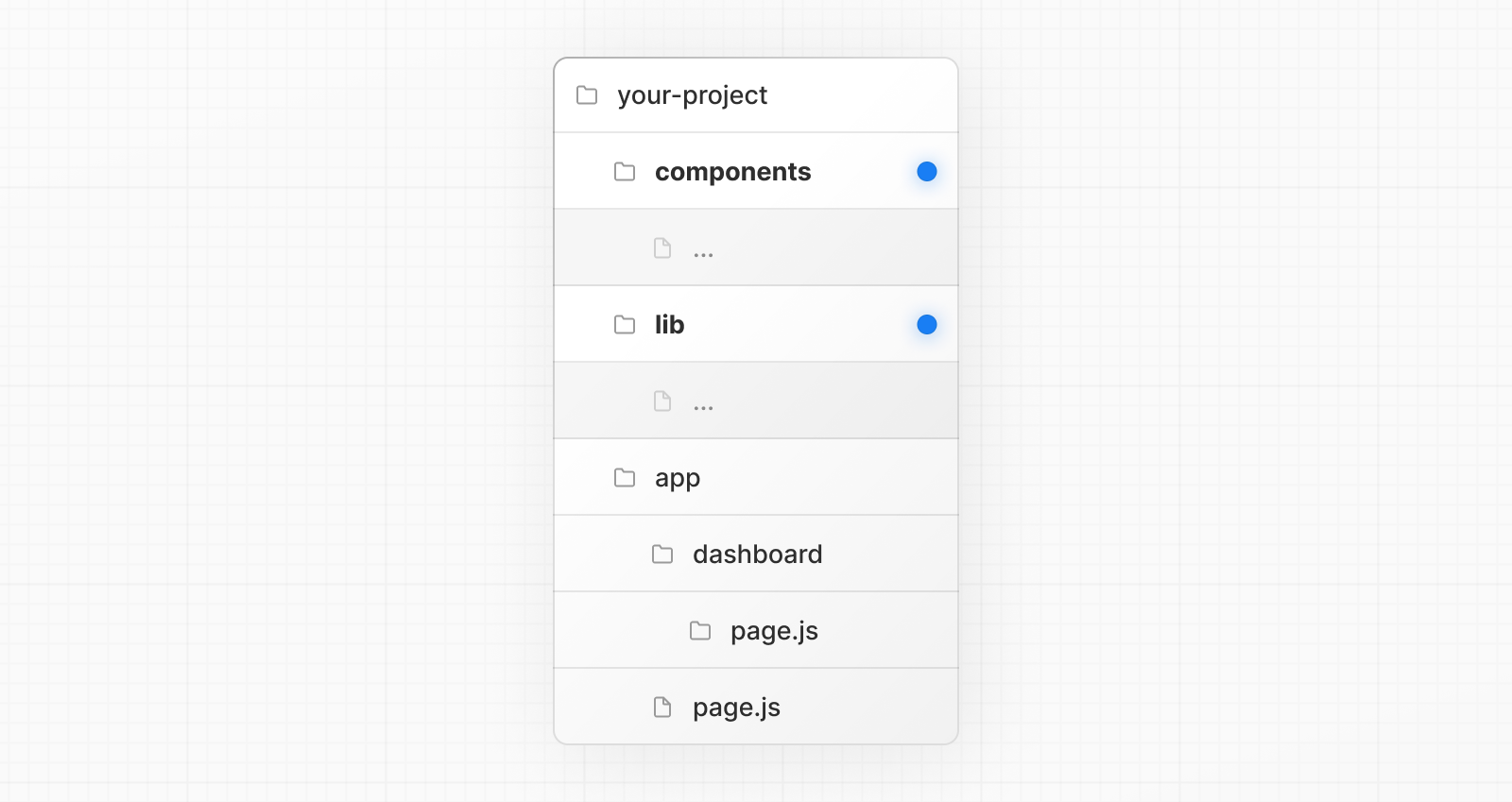
Store project files outside of app
This strategy stores all application code in shared folders in the root of your project and keeps the app directory purely for routing purposes.
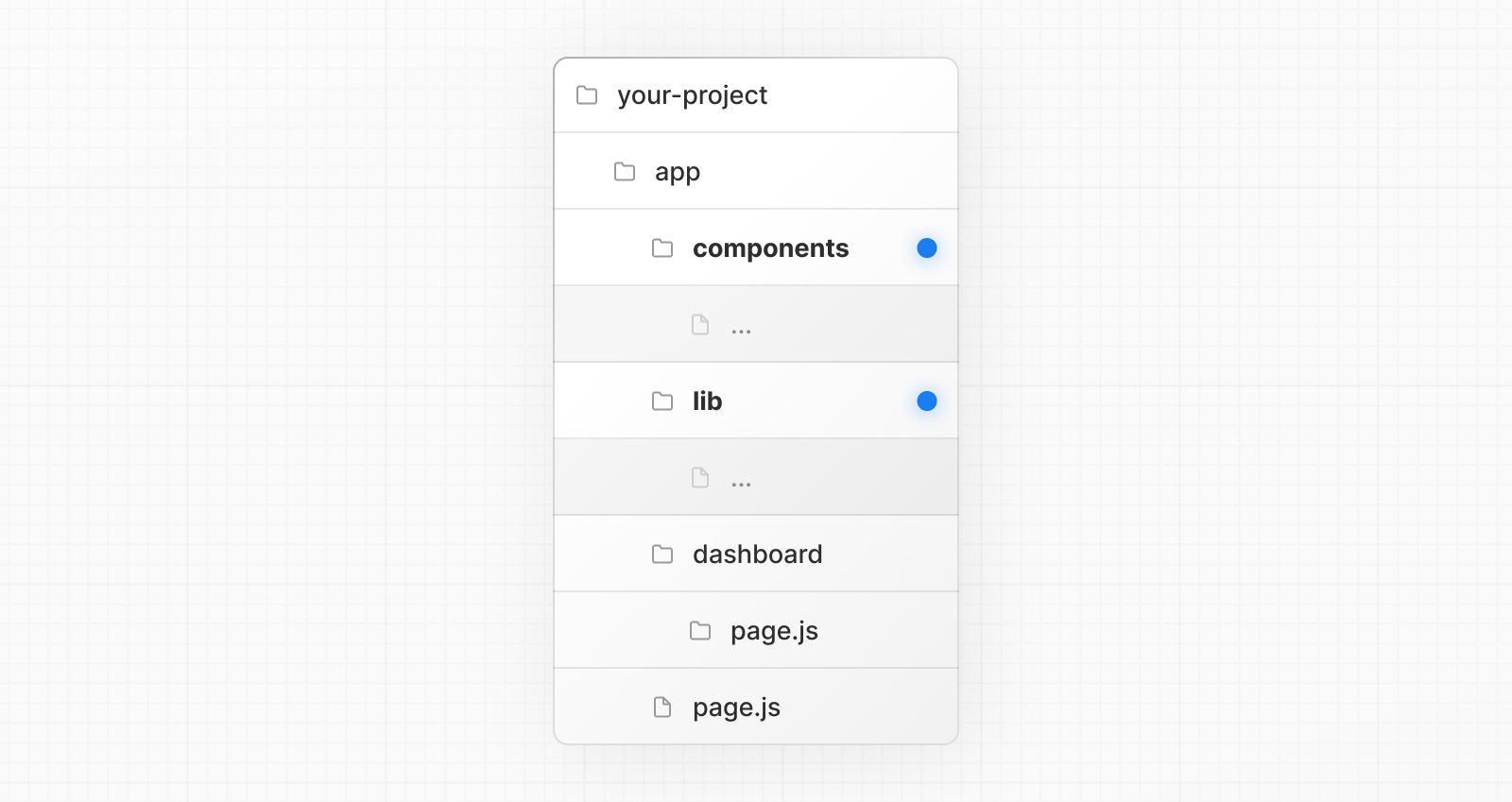
Store project files in top-level folders inside of app
This strategy stores all application code in shared folders in the root of the app directory.
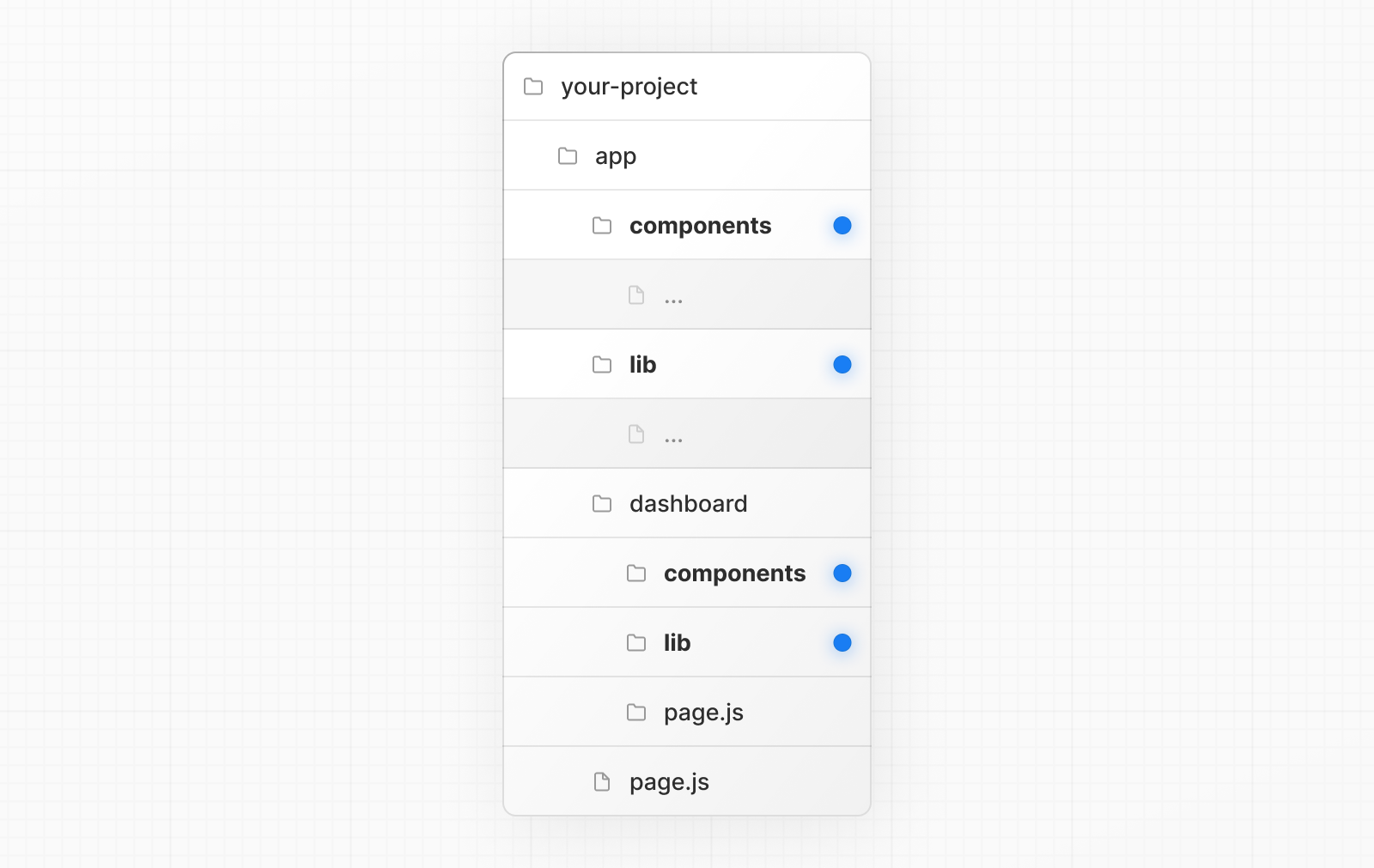
Split project files by feature or route
This strategy stores globally shared application code in the root app directory and splits more specific application code into the route segments that use them.
Organize routes without affecting the URL path
To organize routes without affecting the URL, create a group to keep related routes together. The folders in parenthesis will be omitted from the URL (e.g. (marketing) or (shop)).
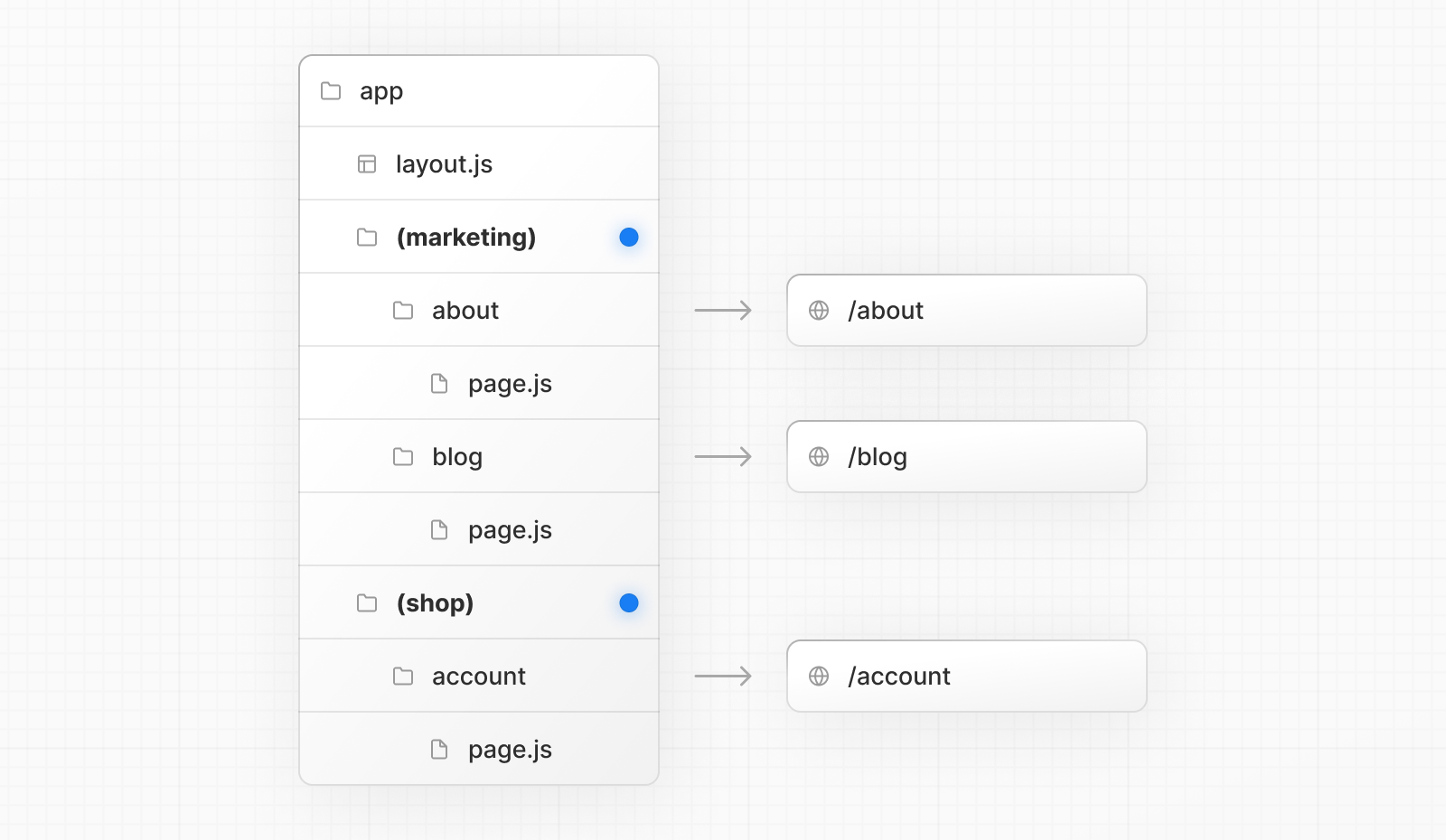
Even though routes inside (marketing) and (shop) share the same URL hierarchy, you can create a different layout for each group by adding a layout.js file inside their folders.
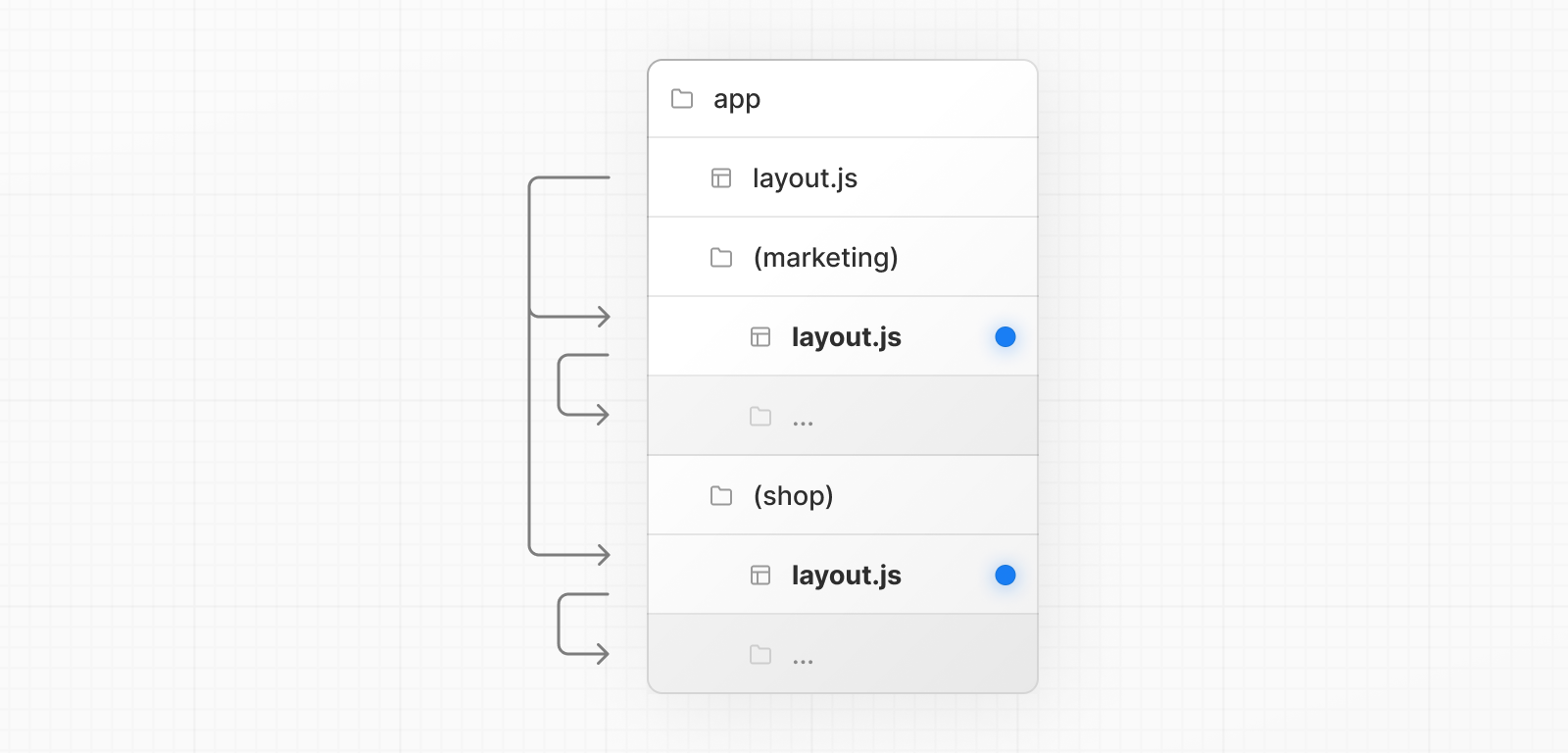
Opting specific segments into a layout
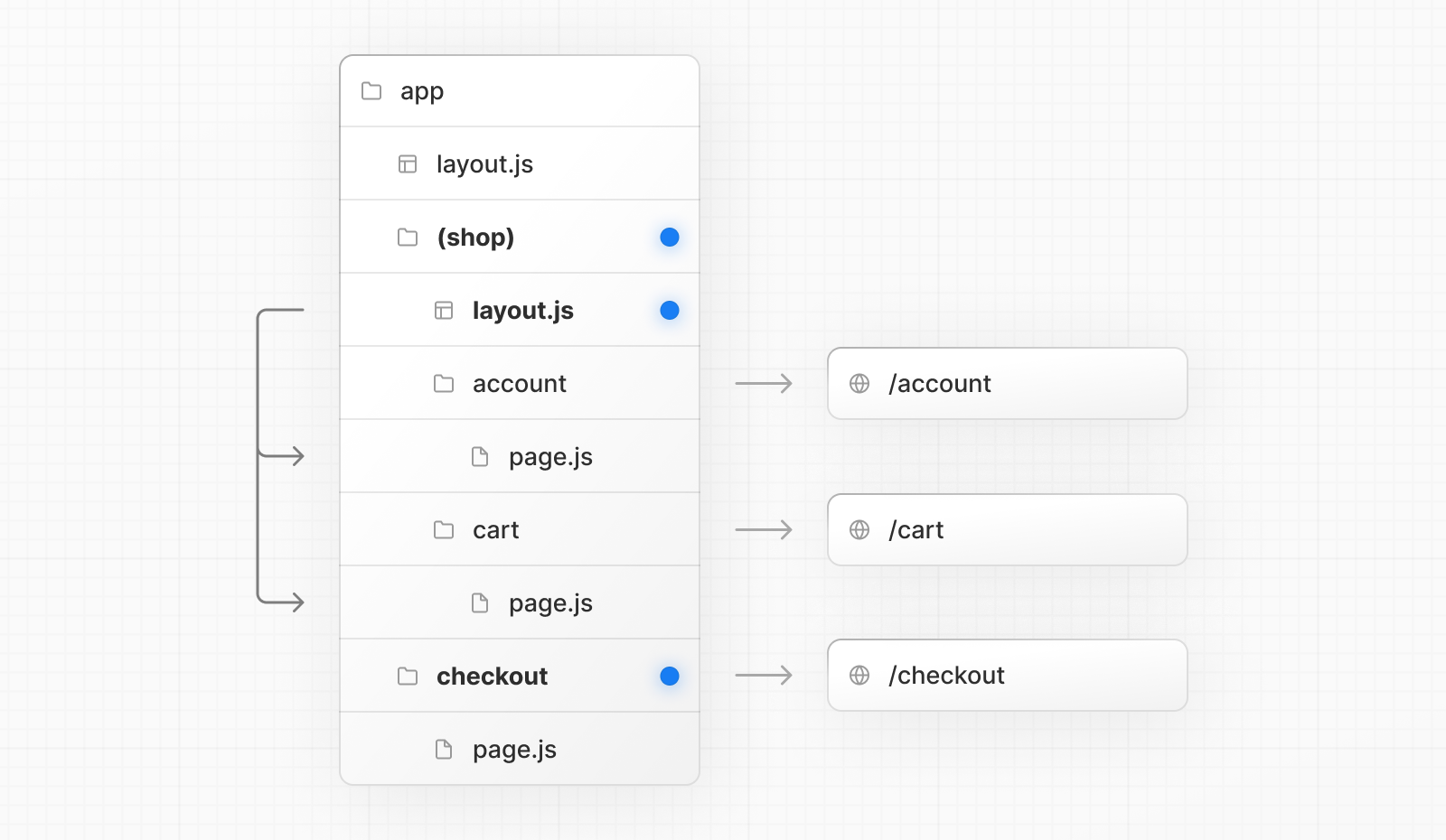
To opt specific routes into a layout, create a new route group (e.g. (shop)) and move the routes that share the same layout into the group (e.g. account and cart). The routes outside of the group will not share the layout (e.g. checkout).
Opting for loading skeletons on a specific route
To apply a loading skeleton via a loading.js file to a specific route, create a new route group (e.g., /(overview)) and then move your loading.tsx inside that route group.

Now, the loading.tsx file will only apply to your dashboard → overview page instead of all your dashboard pages without affecting the URL path structure.
Creating multiple root layouts
To create multiple root layouts, remove the top-level layout.js file, and add a layout.js file inside each route group. This is useful for partitioning an application into sections that have a completely different UI or experience. The <html> and <body> tags need to be added to each root layout.
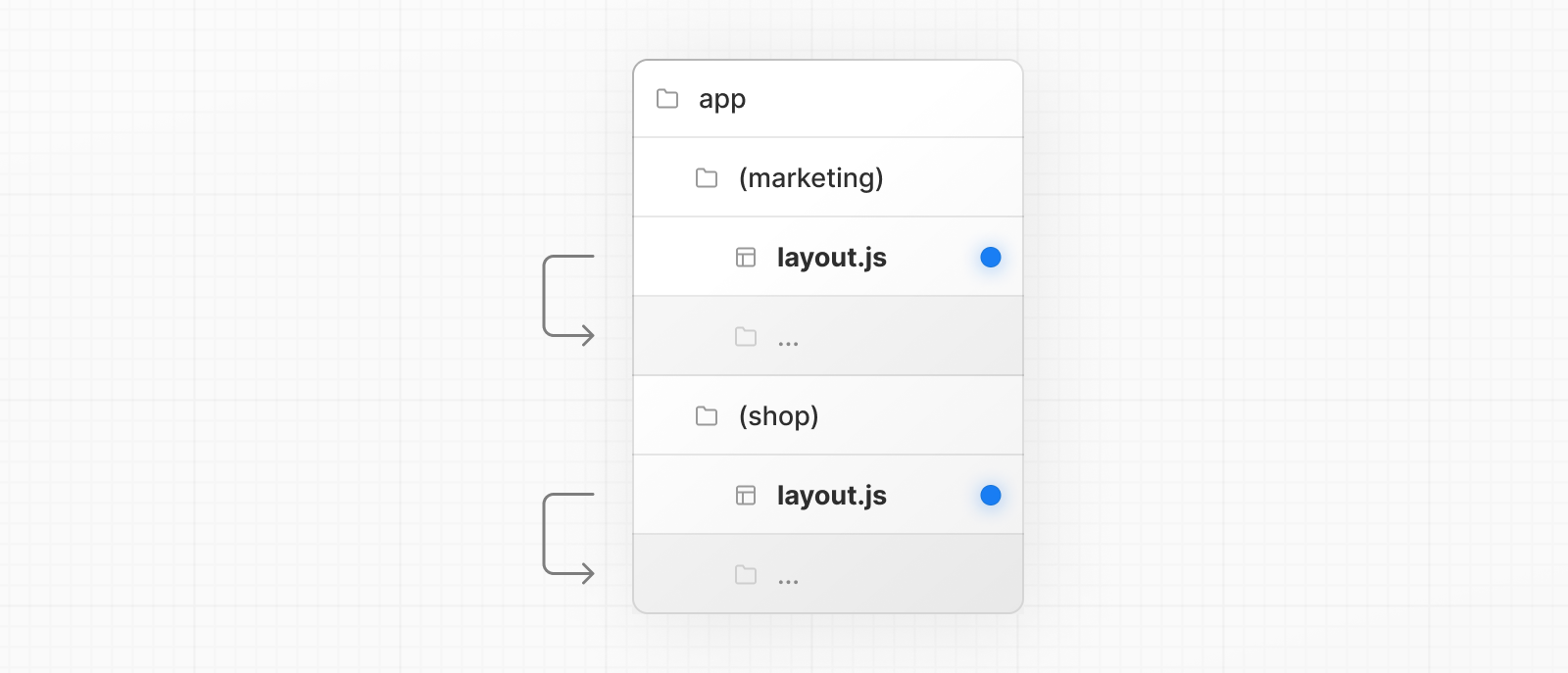
In the example above, both (marketing) and (shop) have their own root layout.
Folder and file conventions
Next.js는 프로젝트 루트의 4개 폴더 이름에 특별한 의미를 부여하는 파일 시스템 기반 라우팅을 사용합니다. 아래 폴더 카드를 클릭해 각 폴더의 역할, 포함되는 파일 목록, 실무 팁을 하단 패널에서 확인해보세요.
- app/ — App Router (Next.js 13+, 권장)
- pages/ — Pages Router (레거시, app/과 공존 가능)
- public/ — 빌드 없이 서빙되는 정적 에셋
- src/ — 선택적 소스 루트 (설정 파일과 코드 분리)
왜 필요한가: Next.js는 프로젝트 루트의 폴더 이름으로 라우터 종류, 정적 파일 경로, 소스 코드 위치를 결정합니다. 잘못된 폴더에 파일을 두면 라우팅이 작동하지 않거나 빌드가 실패합니다.
언제 사용하는가: 새 Next.js 프로젝트를 생성하거나, 기존 프로젝트 구조를 재편할 때 이 4개 폴더의 역할을 정확히 알아야 올바른 구조를 잡을 수 있습니다.
Folder and file conventions
프로젝트 루트의 최상위 파일들은 Next.js 설정, 환경 변수, 빌드 도구 설정으로 구분됩니다. 상단 탭으로 카테고리(Next.js / Environment / Tooling)를 전환한 뒤 파일 이름을 클릭해 각 파일의 역할과 주의사항을 확인해보세요.
- next.config.js·tsconfig.json·eslint.config.mjs 등 설정 파일
- .env·.env.local·.env.production 등 환경 변수 파일
- package.json·pnpm-lock.yaml 패키지 관리 파일
- instrumentation.ts (OpenTelemetry), middleware.ts
왜 필요한가: 프로젝트 루트에 수많은 설정 파일이 존재하지만, 각각의 역할을 모르면 잘못 수정하거나 Git에 민감 정보를 커밋하는 실수를 합니다.
언제 사용하는가: 환경 변수 전략 수립, CI/CD 파이프라인 구성, 팀 컨벤션 정리 시 각 파일의 로드 순서와 우선순위를 알아야 합니다.
Folder and file conventions
Next.js는 특정 파일 이름으로 컴포넌트 중첩 계층을 자동 구성합니다. 상단 프리셋 버튼으로 단계별 학습을 시작하거나, 개별 토글로 자유롭게 탐구해보세요.
- layout — 공유 UI, 네비게이션 간 상태 유지
- page — 해당 경로를 공개하는 진입점
- loading·error — Suspense·Error Boundary 자동 래핑
- route — API 엔드포인트 (같은 폴더에 page와 동시 사용 불가)
왜 필요한가: layout은 네비게이션 간 상태를 유지하고, template은 매번 새로 마운트됩니다. error는 세그먼트 단위로 에러를 격리하며, global-error는 루트 전체를 감쌉니다. 각 파일의 중첩 순서를 이해해야 UX를 올바르게 설계할 수 있습니다.
언제 사용하는가: 공유 내비게이션(layout), 로딩 스켈레톤(loading), 에러 폴백(error), API 엔드포인트(route) 등 각 상황에 맞는 파일을 추가할 때 참고합니다.
시나리오 프리셋
layout + page만 사용하는 최소 구성
개별 토글
컴포넌트 중첩 구조
Layout
Page content
참고: route.js와 page.js는 같은 세그먼트에 공존할 수 없습니다. global-error는 루트 레벨에서만 사용되며, default는 병렬 라우트의 폴백입니다.
Folder and file conventions
중첩 라우트에서 폴더를 중첩하면 URL 세그먼트도 중첩됩니다. 각 폴더 옆의 page.tsx, layout.tsx 토글을 켜고 꺼보세요. 어떤 URL이 공개되고 어떤 레이아웃이 적용되는지 실시간으로 확인할 수 있습니다.
- 폴더 하나가 URL 세그먼트 하나를 정의
- 폴더를 중첩하면 세그먼트도 중첩됨
- 모든 레벨의 layout이 자식 세그먼트를 자동으로 감쌈
- page.js 또는 route.js 파일이 있어야 해당 경로가 공개됨
왜 필요한가: Next.js에서 폴더는 URL 세그먼트를 정의하지만, page.tsx가 없으면 해당 URL로 접근할 수 없습니다. layout.tsx는 해당 세그먼트와 모든 하위 세그먼트를 감싸는 공유 UI를 제공합니다.
언제 사용하는가: 라우트 구조를 설계할 때, 어떤 폴더에 page.tsx를 두고 어떤 폴더에는 layout.tsx만 둘지 결정해야 합니다. 중간 폴더에 page.tsx 없이 layout.tsx만 두면 공유 UI는 제공하되 직접 접근은 불가능하게 만들 수 있습니다.
파일 트리
라우트 결과
| 경로 | URL | 상태 | 깊이 |
|---|---|---|---|
| app/ | / | ✓ 공개 | Root |
| app/blog/ | /blog | ✓ 공개 | Level 1 |
| app/blog/authors/ | /blog/authors | ✓ 공개 | Level 2 |
레이아웃 중첩 체인:
중첩 깊이 범례
참고: 모든 레벨의 layout은 자식 세그먼트를 자동으로 감쌉니다. 중간 폴더에 page.tsx 없이 layout.tsx만 두면, 공유 UI는 제공하면서 해당 경로의 직접 접근은 차단할 수 있습니다.
Folder and file conventions
동적 라우트는 대괄호 표기법으로 URL 파라미터를 캡처합니다. 아래 패턴 카드를 선택하면 예시 URL이 자동 적용되어 브라우저 목업에서 매칭 결과를 바로 확인할 수 있습니다.
- [segment] — 단일 동적 파라미터
- [...segment] — catch-all (1개 이상 세그먼트 매칭)
- [[...segment]] — optional catch-all (0개 이상 세그먼트 매칭)
- params prop으로 동적 값에 접근
왜 필요한가: [slug]는 정확히 1개의 세그먼트만, [...slug]는 1개 이상을, [[...slug]]는 0개 이상을 캡처합니다. 이 차이를 모르면 /docs 같은 루트 경로에서 404가 발생하거나, /shop에서 매칭이 안 되는 문제가 생깁니다.
언제 사용하는가: 블로그 슬러그([slug]), 카테고리 계층([...slug]), 문서 경로([[...slug]]) 등 URL 구조 설계 시 적합한 패턴을 선택할 때 참고합니다.
패턴 선택
예시 URL
app/blog/[slug]/page.tsx
params =
{ slug: "hello-world" }
전체 패턴 매칭 결과
비교 포인트: [[...slug]]는 루트 경로(/docs)도 매칭하지만, [...slug]는 최소 1개 세그먼트가 필요합니다. /docs를 입력하여 직접 확인해보세요.
Folder and file conventions
라우트 그룹 `(group)`과 프라이빗 폴더 `_folder`는 모두 URL 경로 구조에 영향을 주지 않는 조직화 도구입니다. 각 폴더의 모드 버튼을 클릭해 일반/그룹/프라이빗으로 전환하며 URL 매핑이 실시간으로 변경되는 것을 확인해보세요.
- `(group)` — URL에 포함되지 않는 조직용 폴더
- `_folder` — 라우팅 불가 파일 보관용 폴더
- 둘 다 URL 경로 구조에 영향을 주지 않음
- `(marketing)/page.tsx` → `/` URL, `_components/Post.tsx` → 라우팅 불가
왜 필요한가: 라우트 그룹은 URL 구조를 깔끔하게 유지하면서 레이아웃을 공유할 때 필수이고, 프라이빗 폴더는 컴포넌트·유틸리티 파일이 실수로 라우트로 노출되는 것을 방지합니다.
언제 사용하는가: (marketing)/(shop) 처럼 동일 URL 레벨에서 다른 레이아웃이 필요할 때 그룹을, _components/_lib 처럼 라우트와 무관한 헬퍼 파일을 같은 세그먼트에 둘 때 프라이빗을 사용합니다.
app/(marketing)/page.tsx->/app/(shop)/cart/page.tsx->/cartapp/_blog/_components/Post.tsx->Not routableapp/_blog/_lib/data.ts->Not routable참고: URL에서 %5F 접두사를 사용하면 언더스코어(_)로 시작하는 실제 URL 세그먼트를 만들 수 있습니다. 프라이빗 폴더 규칙과 혼동하지 않도록 주의하세요.
Folder and file conventions
병렬 라우트(@folder)와 인터셉트 라우트((.)패턴)는 고급 라우팅 패턴입니다. 패턴 카드를 선택한 뒤 시뮬레이션 버튼으로 각 패턴의 동작을 시각적으로 체험해보세요.
- @folder — named slot (부모 layout이 prop으로 수신)
- (.)folder — 같은 레벨 라우트를 soft navigation에서 인터셉트
- (..)folder — 한 레벨 위 라우트를 인터셉트
- (...)folder — root에서 인터셉트
왜 필요한가: 병렬 라우트는 대시보드처럼 여러 독립적 UI를 동시에 보여줄 때, 인터셉트 라우트는 모달 미리보기처럼 URL은 바꾸되 현재 페이지 컨텍스트를 유지할 때 사용합니다.
언제 사용하는가: 병렬(@)은 사이드바+메인 동시 렌더링, 조건부 슬롯 표시 등에 사용합니다. 인터셉트는 사진 갤러리 모달, 장바구니 미리보기 등 소프트 내비게이션에서 오버레이가 필요할 때 사용합니다.
@folderParallelNamed slot (병렬 라우트)
Sidebar + main content를 동시에 렌더링
File Structure:
app/layout.tsx ← children + @sidebar 수신app/@sidebar/page.tsx ← sidebar slotapp/page.tsx ← main content (children)병렬 라우트 동작
각 슬롯은 독립적인 로딩 상태를 가집니다. 하나가 로드되어도 다른 슬롯의 로딩에 영향을 주지 않습니다.
주의: 인터셉트 라우트는 소프트 내비게이션(Link 클릭)에서만 동작합니다. 하드 내비게이션(새로고침, URL 직접 입력)에서는 인터셉트가 무시되고 원래 페이지가 풀 렌더링됩니다.
Folder and file conventions
Next.js는 특정 파일명 규칙으로 메타데이터를 자동 삽입합니다. 3개의 탭(App Icons, OG & Twitter, SEO)을 전환하고 각 파일 카드를 클릭해 파일별 지원 형식과 정적/생성 여부를 비교해보세요.
- favicon/icon — 앱 아이콘 (.ico/.png/.svg)
- apple-icon — Apple 기기 전용 아이콘
- opengraph-image / twitter-image — 소셜 미리보기 이미지
- sitemap.xml / robots.txt — SEO 크롤러 동작 제어
왜 필요한가: 메타데이터 파일은 SEO와 소셜 공유에 필수입니다. 정적 파일은 단순 배치로 동작하고, 생성 파일은 빌드 타임에 동적으로 만들어져 개인화된 OG 이미지 등을 구현할 수 있습니다.
언제 사용하는가: 모든 페이지에 동일한 이미지면 정적 파일로, 페이지별로 다른 OG 이미지나 동적 사이트맵이 필요하면 생성(.js/.ts) 방식을 사용합니다.
참고: favicon은 .ico 형식만 지원됩니다. 생성 방식의 메타데이터 파일은 반드시 export default function을 사용해야 합니다.
Organizing your project
파일을 토글하면 컴포넌트 계층이 즉시 변화합니다. 어떤 파일이 어떤 래핑 레이어를 결정하는지 관찰하세요.
- 특수 파일들은 정해진 계층 순서로 렌더링됨
- 순서: layout → template → error → loading → not-found → page
- 중첩 라우트에서 이 계층 구조가 재귀적으로 적용됨
- 자식 세그먼트의 컴포넌트는 항상 부모 세그먼트 컴포넌트 안에 중첩됨
왜 필요한가: 컴포넌트 계층 구조를 이해하면 에러 바운더리와 서스펜스 바운더리의 영향 범위를 정확히 제어할 수 있습니다. layout은 상태가 유지되고 template은 매번 리마운트되는 차이도 중요합니다.
언제 사용하는가: 모든 라우트 세그먼트에서 이 순서가 적용됩니다. 중첩 라우트에서는 부모 세그먼트의 컴포넌트가 자식 세그먼트 전체를 감싸므로, 에러/로딩 상태의 범위를 세그먼트 단위로 분리할 수 있습니다.
Component Tree:
참고: 중첩 라우트에서는 부모 세그먼트의 layout/template/error/loading이 자식 세그먼트의 전체 계층을 재귀적으로 감쌉니다.
Organizing your project
page.tsx를 끄면 폴더 색상이 변합니다. 파일을 추가해도 라우팅되지 않는 것을 확인하세요.
- page.js가 없는 폴더는 공개 URL로 접근 불가
- 폴더 구조가 라우트 구조를 정의하지만, page.js가 없으면 라우트가 되지 않음
- page.js가 반환한 콘텐츠만 클라이언트로 전송됨
- app/ 내 컴포넌트·유틸 파일을 라우트 폴더 안에 안전하게 배치 가능
왜 필요한가: 라우트 세그먼트 폴더 안에 관련 컴포넌트, 유틸, 스타일 파일을 함께 두면 코드 탐색이 쉬워집니다. page.js나 route.js가 없으면 그 폴더는 라우트로 노출되지 않으므로 안전합니다.
언제 사용하는가: 특정 라우트 전용 컴포넌트나 유틸리티를 해당 세그먼트 폴더에 바로 둘 때 사용합니다. 프로젝트 전체 공유 코드는 app/ 외부에 두는 것도 좋은 방법입니다.
/dashboard — 이 폴더는 공개 URL로 접근 가능합니다.
파일 추가 (라우팅과 무관):
page.tsx content only)Colocated (not publicly accessible)참고: 코로케이션은 안전하지만, 프로젝트 전체에서 공유하는 코드는 app/ 외부(예: src/lib, src/components)에 두는 것이 일반적인 패턴입니다.
Organizing your project
_ 접두사를 토글하면 라우팅 결과가 즉시 변합니다.
- _folderName 접두사로 해당 폴더를 라우팅 시스템에서 제외
- 폴더와 모든 하위 폴더가 비라우팅 대상이 됨
- UI 로직과 라우팅 로직을 명확하게 분리하는 데 유용
- 향후 Next.js 파일 컨벤션과의 이름 충돌을 예방
왜 필요한가: app/ 디렉터리 내 모든 폴더는 기본적으로 라우팅 대상이 됩니다. 내부 구현용 파일(컴포넌트, 유틸 등)이 의도치 않게 URL로 노출되는 것을 방지하려면 명시적인 opt-out 메커니즘이 필요합니다.
언제 사용하는가: UI 컴포넌트, 훅, 유틸리티 등 라우팅과 무관한 코드를 app/ 내부에 배치할 때 사용합니다. Colocation이 암묵적 안전성이라면, Private Folder는 명시적 opt-out입니다.
app/ 디렉터리 구조
%5F 참고: URL에서 언더스코어로 시작하는 세그먼트가 필요하다면 %5F(URL-encoded underscore)를 사용하세요. 예: /app/%5Fanalytics/page.tsx → URL: /_analytics
Organizing your project
Route Group은 폴더명을 괄호로 감싸 URL에서 자동 제외하는 조직화 방법입니다. 아래 파일 트리에서 각 폴더 옆의 "( ) 토글" 버튼을 클릭하면 폴더명이 URL에서 사라지고, 같은 그룹 내 라우트가 동일한 레이아웃을 공유하는 것을 확인할 수 있습니다.
- 폴더명을 괄호로 감싸면 URL에서 자동 제외
- 사이트 섹션·의도·팀별로 라우트를 논리적으로 구성 가능
- 같은 URL 계층에서 그룹별 중첩 layout 활성화
- 특정 라우트에만 layout을 선택적으로 적용 가능
왜 필요한가: 마케팅, 쇼핑, 블로그 등 섹션별로 코드를 정리하고 싶지만 URL에는 그 구분이 나타나지 않아야 할 때 사용합니다. 같은 그룹 내에서 레이아웃을 공유할 수도 있습니다.
언제 사용하는가: 팀/섹션별 코드 분리, 중첩 레이아웃 적용, 또는 여러 루트 레이아웃이 필요할 때 사용합니다. 다만 여러 루트 레이아웃을 만들려면 최상위 layout.js를 제거해야 합니다.
/about/contact/cart/checkout/blog생성되는 URL 목록:
/about/contact/cart/checkout/blog다중 루트 레이아웃 참고: Route Group을 사용해 여러 루트 레이아웃을 만들 수 있지만, 이 경우 최상위 app/layout.js를 제거해야 합니다. 각 그룹은 자체 layout.js를 포함해야 하며, 그룹 간 이동 시 전체 페이지가 리로드됩니다.
Organizing your project
src/ 폴더는 선택적으로 사용할 수 있으며, app/을 src/app/으로 이동해 애플리케이션 코드와 프로젝트 설정 파일을 분리합니다. 아래 토글 버튼으로 "With src/"와 "Without src/"를 전환해 파일 위치 변화를 직접 확인해보세요.
- app/을 src/app/으로 이동 가능 (선택적)
- 애플리케이션 코드와 프로젝트 설정 파일을 분리
- 설정 파일은 루트에, 소스 코드는 src/ 아래에 위치
- src/app/이 최상위 app/을 대체하여 동작
왜 필요한가: 프로젝트 루트에 설정 파일(package.json, tsconfig.json 등)과 앱 코드(components, lib 등)가 혼재하면 관리가 어려워집니다. src/ 폴더는 앱 코드만 따로 묶어 루트를 깔끔하게 유지합니다.
언제 사용하는가: 프로젝트 규모가 커져 루트 디렉터리가 복잡할 때, 또는 팀 컨벤션으로 코드와 설정을 명확히 분리하고 싶을 때 사용합니다. src/를 쓰면 app/은 반드시 src/ 안에 위치해야 합니다.
Without src/
- + 구조가 단순함
- + 별도 설정 불필요
- - 루트에 파일이 많아짐
With src/
- + 코드와 설정 분리
- + 루트가 깔끔함
- - 한 단계 더 깊은 경로
주의: src/ 폴더를 사용하면 app/디렉터리는 반드시 src/app/에 위치해야 합니다. middleware.ts, instrumentation.ts 등도 src/ 안으로 이동합니다.
Examples
모든 코드를 프로젝트 루트의 공유 폴더에 보관하고, app/ 디렉토리는 순수 라우팅 목적으로만 사용하는 전략입니다. 아래 파일 트리에서 각 폴더와 파일을 클릭해 역할과 설명을 하단 패널에서 확인해보세요.
- 모든 코드를 프로젝트 루트의 공유 폴더에 보관
- app/ 디렉토리는 순수 라우팅 목적으로만 사용
- components·lib은 프로젝트 루트에 위치
- 라우팅 코드와 비즈니스 로직을 완전히 분리
왜 필요한가: app/ 디렉터리를 순수하게 라우팅 용도로만 유지하면 프로젝트 구조가 직관적이고 라우트를 한눈에 파악할 수 있습니다. 공유 코드는 루트 레벨 폴더에서 관리합니다.
언제 사용하는가: 소규모~중규모 프로젝트에서 추천됩니다. "Inside app" 전략은 모든 코드를 app/ 안에 두고, "Split by feature" 전략은 기능별로 나누는 차이가 있습니다.
위 파일 트리에서 항목을 클릭하면 상세 설명이 표시됩니다.
전략 비교: 이 "Outside app" 전략은 app/을 라우팅 전용으로 유지합니다. 반면 "Inside app" 전략은 공유 폴더를 app/ 내부에 배치하고(page.tsx 없으면 라우팅되지 않음), 대규모 프로젝트에서는 기능별로 나누는 것이 유리할 수 있습니다.
Examples
모든 코드를 app/ 루트의 공유 폴더에 보관하는 전략으로, components·lib 등을 app/ 바로 아래에 배치합니다. 아래 파일 트리에서 각 폴더와 파일을 클릭해 page.tsx 유무에 따른 라우팅 가능 여부를 직접 확인해보세요.
- 모든 코드를 app/ 루트의 공유 폴더에 보관
- app/ 디렉토리가 라우팅과 코드를 모두 포함
- components·lib 등을 app/ 바로 아래에 배치
- 단일 위치에서 모든 코드를 관리
왜 필요한가: 모든 프로젝트 코드를 app/ 안에 모아두면 import 경로가 일관되고, 파일 탐색이 한 곳에서 이루어집니다. Next.js는 page.tsx가 있는 폴더만 라우팅하므로, 공유 폴더는 안전합니다.
언제 사용하는가: 프로젝트를 한 디렉터리 안에서 통합 관리하고 싶을 때 사용합니다. "Outside app" 전략과 비교하면 코드 이동 없이 app/ 하나에서 모든 것을 관리하는 차이가 있습니다.
위 파일 트리에서 항목을 클릭하면 상세 설명이 표시됩니다.
Colocation 안전성: Next.js에서 폴더가 라우팅되려면 반드시 page.tsx가 있어야 합니다. 따라서 app/ 내부에 components/나 lib/ 같은 공유 폴더를 두어도 page.tsx가 없으면 URL로 접근할 수 없습니다. 이것이 "Outside app" 전략 대비 이 전략의 핵심 근거입니다.
Examples
"기능별 분리(split by feature)" 전략은 전역 공유 코드는 app/ 루트에, 기능별 특화 코드는 해당 라우트 세그먼트에 배치하여 코드 응집도를 극대화합니다. 아래 세그먼트 버튼(app, blog, dashboard)을 클릭해 파일 하이라이트로 분리 구조를 직접 확인해보세요.
- 전역 공유 코드는 app/ 루트에 보관
- 기능·라우트별 특화 코드는 해당 라우트 세그먼트에 배치
- 기능 응집도를 극대화하는 전략
- 규모가 큰 프로젝트에서 관련 파일 탐색이 용이
왜 필요한가: 프로젝트가 커질수록 전역 폴더에 모든 컴포넌트와 유틸리티를 모으면 찾기 어려워집니다. 기능별로 분리하면 관련 코드가 가까이 있어 탐색이 빠릅니다.
언제 사용하는가: 명확한 기능 경계가 있는 중대형 프로젝트에서 효과적입니다. 각 라우트 세그먼트가 고유한 컴포넌트와 유틸리티를 가질 때 적합합니다.
Examples
괄호로 감싼 폴더명은 URL에서 자동으로 생략됩니다. "그룹화 적용" 토글을 켜고 끄면서 폴더 구조가 어떻게 변하는지, 그리고 URL은 변하지 않음을 확인해보세요.
- 괄호로 감싼 폴더명은 URL에서 자동으로 생략됨
- 관련 라우트를 그룹으로 묶어 코드 구조화 가능
- 같은 URL 계층에서 그룹별로 다른 layout 적용 가능
- (marketing)·(shop) 같은 그룹이 각각 독립 layout을 가질 수 있음
왜 필요한가: 팀이나 기능 단위로 라우트를 묶으면 파일 탐색이 쉬워지고, 그룹별 레이아웃을 적용할 수 있습니다. 괄호 폴더명은 URL에 영향을 주지 않습니다.
언제 사용하는가: 마케팅/쇼핑 등 서로 다른 섹션이 있거나, 팀별로 라우트를 분리해 관리하고 싶을 때 사용합니다.
Folder Structure
Resulting URLs
| Route | URL | Layout |
|---|---|---|
| about | /about | (marketing) layout |
| blog | /blog | (marketing) layout |
| cart | /cart | (shop) layout |
| products | /products | (shop) layout |
URL은 그룹화 여부와 관계없이 동일합니다 — 괄호 폴더명은 URL에서 생략됩니다.
Examples
route group으로 layout 공유 범위를 정밀하게 제어할 수 있습니다. 각 라우트 카드를 클릭하여 (shop) 그룹 안팎으로 이동시켜 보세요. 그룹 안의 라우트만 ShopLayout을 공유합니다.
- route group으로 layout 공유 범위를 정밀하게 제어 가능
- 그룹 안의 라우트에만 해당 layout이 적용됨
- 그룹 밖 라우트는 layout 적용 대상에서 자동 제외
- account·cart는 layout 공유, checkout은 제외하는 패턴
왜 필요한가: 일부 라우트만 사이드바나 네비게이션 등 공통 레이아웃을 공유해야 할 때, Route Group으로 해당 라우트만 묶으면 됩니다.
언제 사용하는가: 예를 들어 account와 cart는 쇼핑 레이아웃을 공유하지만, checkout은 깔끔한 별도 레이아웃이 필요할 때 사용합니다.
클릭하여 (shop) 그룹에 추가/제거:
Layout Nesting Visualization
RootLayout
(shop)/layout.tsx — ShopLayout
Examples
loading.tsx 배치 위치를 전환한 뒤 '로딩 시뮬레이션'을 클릭하세요. 스켈레톤이 적용되는 범위가 highlight-yellow 테두리로 표시됩니다. 어떤 라우트에 스켈레톤이 나타나고 어떤 라우트는 영향받지 않는지 관찰하세요.
- 특정 라우트에만 loading.js를 적용할 수 있음
- route group으로 loading.tsx의 적용 범위를 한정
- URL 경로 구조에 영향 없이 로딩 범위 조정 가능
- 전체 레이아웃이 아닌 특정 페이지에만 스켈레톤 적용
왜 필요한가: loading.tsx를 부모 레벨에 두면 모든 하위 라우트에 스켈레톤이 표시됩니다. 특정 라우트에만 적용하려면 Route Group으로 범위를 제한해야 합니다.
언제 사용하는가: 대시보드의 overview 페이지만 로딩 스켈레톤을 보여주고, settings 등 다른 페이지는 별도 로딩 처리를 하고 싶을 때 사용합니다.
Dashboard
스켈레톤 적용 범위
Route Group으로 범위를 제한하여 overview 페이지에만 스켈레톤이 적용됩니다.
Examples
Single과 Multiple 모드를 전환하면서 브라우저 목업의 HTML 구조가 어떻게 달라지는지 관찰하세요. Multiple 모드에서는 각 섹션이 독립적인 <html>을 가지며, 완전히 다른 스타일과 메타데이터를 적용할 수 있습니다.
- 최상위 layout.js를 반드시 제거해야 함
- 각 route group 폴더에 독립적인 layout.js 추가
- 각 root layout에 <html>과 <body> 태그 포함 필요
- 앱을 완전히 다른 UI를 가진 독립 섹션으로 분할 가능
왜 필요한가: 마케팅 사이트와 쇼핑몰이 완전히 다른 HTML 구조, 메타데이터, 폰트 등을 필요로 할 때 각각 독립적인 root layout을 가질 수 있습니다.
언제 사용하는가: 앱의 서로 다른 섹션이 완전히 다른 look & feel을 가져야 할 때. 단, 그룹 간 이동 시 full page load가 발생합니다.
File Structure
<html> — 공유 HTML shell
<head>
title: "My App"
font: system (공유)
theme: 공유 설정
<body>
</html>
This page provides an overview of all the folder and file conventions in Next.js, and recommendations for organizing your project.
Folder and file conventions
Top-level folders
Top-level folders are used to organize your application's code and static assets.
app | App Router |
pages | Pages Router |
public | Static assets to be served |
src | Optional application source folder |
Top-level files
Top-level files are used to configure your application, manage dependencies, run proxy, integrate monitoring tools, and define environment variables.
| Next.js | |
next.config.js | Configuration file for Next.js |
package.json | Project dependencies and scripts |
instrumentation.ts | OpenTelemetry and Instrumentation file |
proxy.ts | Next.js request proxy |
.env | Environment variables (should not be tracked by version control) |
.env.local | Local environment variables (should not be tracked by version control) |
.env.production | Production environment variables (should not be tracked by version control) |
.env.development | Development environment variables (should not be tracked by version control) |
eslint.config.mjs | Configuration file for ESLint |
.gitignore | Git files and folders to ignore |
next-env.d.ts | TypeScript declaration file for Next.js (should not be tracked by version control) |
tsconfig.json | Configuration file for TypeScript |
jsconfig.json | Configuration file for JavaScript |
Routing Files
Add page to expose a route, layout for shared UI such as header, nav, or footer, loading for skeletons, error for error boundaries, and route for APIs.
layout | .js .jsx .tsx | Layout |
page | .js .jsx .tsx | Page |
loading | .js .jsx .tsx | Loading UI |
not-found | .js .jsx .tsx | Not found UI |
error | .js .jsx .tsx | Error UI |
global-error | .js .jsx .tsx | Global error UI |
route | .js .ts | API endpoint |
template | .js .jsx .tsx | Re-rendered layout |
default | .js .jsx .tsx | Parallel route fallback page |
Nested routes
Folders define URL segments. Nesting folders nests segments. Layouts at any level wrap their child segments. A route becomes public when a page or route file exists.
| Path | URL pattern | Notes |
|---|---|---|
app/layout.tsx | — | Root layout wraps all routes |
app/blog/layout.tsx | — | Wraps /blog and descendants |
app/page.tsx | / | Public route |
app/blog/page.tsx | /blog | Public route |
app/blog/authors/page.tsx | /blog/authors | Public route |
Dynamic routes
Parameterize segments with square brackets. Use [segment] for a single param, [...segment] for catch‑all, and [[...segment]] for optional catch‑all. Access values via the params prop.
| Path | URL pattern |
|---|---|
app/blog/[slug]/page.tsx | /blog/my-first-post |
app/shop/[...slug]/page.tsx | /shop/clothing, /shop/clothing/shirts |
app/docs/[[...slug]]/page.tsx | /docs, /docs/layouts-and-pages, /docs/api-reference/use-router |
Route groups and private folders
Organize code without changing URLs with route groups (group), and colocate non-routable files with private folders _folder.
| Path | URL pattern | Notes |
|---|---|---|
app/(marketing)/page.tsx | / | Group omitted from URL |
app/(shop)/cart/page.tsx | /cart | Share layouts within (shop) |
app/blog/_components/Post.tsx | — | Not routable; safe place for UI utilities |
app/blog/_lib/data.ts | — | Not routable; safe place for utils |
Parallel and Intercepted Routes
These features fit specific UI patterns, such as slot-based layouts or modal routing.
Use @slot for named slots rendered by a parent layout. Use intercept patterns to render another route inside the current layout without changing the URL, for example, to show a details view as a modal over a list.
| Pattern (docs) | Meaning | Typical use case |
|---|---|---|
@folder | Named slot | Sidebar + main content |
(.)folder | Intercept same level | Preview sibling route in a modal |
(..)folder | Intercept parent | Open a child of the parent as an overlay |
(..)(..)folder | Intercept two levels | Deeply nested overlay |
(...)folder | Intercept from root | Show arbitrary route in current view |
Metadata file conventions
App icons
favicon | .ico | Favicon file |
icon | .ico .jpg .jpeg .png .svg | App Icon file |
icon | .js .ts .tsx | Generated App Icon |
apple-icon | .jpg .jpeg, .png | Apple App Icon file |
apple-icon | .js .ts .tsx | Generated Apple App Icon |
Open Graph and Twitter images
opengraph-image | .jpg .jpeg .png .gif | Open Graph image file |
opengraph-image | .js .ts .tsx | Generated Open Graph image |
twitter-image | .jpg .jpeg .png .gif | Twitter image file |
twitter-image | .js .ts .tsx | Generated Twitter image |
SEO
sitemap | .xml | Sitemap file |
sitemap | .js .ts | Generated Sitemap |
robots | .txt | Robots file |
robots | .js .ts | Generated Robots file |
Organizing your project
Next.js is unopinionated about how you organize and colocate your project files. But it does provide several features to help you organize your project.
Component hierarchy
The components defined in special files are rendered in a specific hierarchy:
layout.jstemplate.jserror.js(React error boundary)loading.js(React suspense boundary)not-found.js(React error boundary for "not found" UI)page.jsor nestedlayout.js
The components are rendered recursively in nested routes, meaning the components of a route segment will be nested inside the components of its parent segment.
Colocation
In the app directory, nested folders define route structure. Each folder represents a route segment that is mapped to a corresponding segment in a URL path.
However, even though route structure is defined through folders, a route is not publicly accessible until a page.js or route.js file is added to a route segment.
And, even when a route is made publicly accessible, only the content returned by page.js or route.js is sent to the client.
This means that project files can be safely colocated inside route segments in the app directory without accidentally being routable.
Good to know: While you can colocate your project files in
appyou don't have to. If you prefer, you can keep them outside theappdirectory.
Private folders
Private folders can be created by prefixing a folder with an underscore: _folderName
This indicates the folder is a private implementation detail and should not be considered by the routing system, thereby opting the folder and all its subfolders out of routing.
Since files in the app directory can be safely colocated by default, private folders are not required for colocation. However, they can be useful for:
- Separating UI logic from routing logic.
- Consistently organizing internal files across a project and the Next.js ecosystem.
- Sorting and grouping files in code editors.
- Avoiding potential naming conflicts with future Next.js file conventions.
Good to know:
- While not a framework convention, you might also consider marking files outside private folders as "private" using the same underscore pattern.
- You can create URL segments that start with an underscore by prefixing the folder name with
%5F(the URL-encoded form of an underscore):%5FfolderName.- If you don't use private folders, it would be helpful to know Next.js special file conventions to prevent unexpected naming conflicts.
Route groups
Route groups can be created by wrapping a folder in parenthesis: (folderName)
This indicates the folder is for organizational purposes and should not be included in the route's URL path.
Route groups are useful for:
- Organizing routes by site section, intent, or team. e.g. marketing pages, admin pages, etc.
- Enabling nested layouts in the same route segment level:
src folder
Next.js supports storing application code (including app) inside an optional src folder. This separates application code from project configuration files which mostly live in the root of a project.
Examples
The following section lists a very high-level overview of common strategies. The simplest takeaway is to choose a strategy that works for you and your team and be consistent across the project.
Good to know: In our examples below, we're using
componentsandlibfolders as generalized placeholders, their naming has no special framework significance and your projects might use other folders likeui,utils,hooks,styles, etc.
Store project files outside of app
This strategy stores all application code in shared folders in the root of your project and keeps the app directory purely for routing purposes.
Store project files in top-level folders inside of app
This strategy stores all application code in shared folders in the root of the app directory.
Split project files by feature or route
This strategy stores globally shared application code in the root app directory and splits more specific application code into the route segments that use them.
Organize routes without affecting the URL path
To organize routes without affecting the URL, create a group to keep related routes together. The folders in parenthesis will be omitted from the URL (e.g. (marketing) or (shop)).
Even though routes inside (marketing) and (shop) share the same URL hierarchy, you can create a different layout for each group by adding a layout.js file inside their folders.
Opting specific segments into a layout
To opt specific routes into a layout, create a new route group (e.g. (shop)) and move the routes that share the same layout into the group (e.g. account and cart). The routes outside of the group will not share the layout (e.g. checkout).
Opting for loading skeletons on a specific route
To apply a loading skeleton via a loading.js file to a specific route, create a new route group (e.g., /(overview)) and then move your loading.tsx inside that route group.
Now, the loading.tsx file will only apply to your dashboard → overview page instead of all your dashboard pages without affecting the URL path structure.
Creating multiple root layouts
To create multiple root layouts, remove the top-level layout.js file, and add a layout.js file inside each route group. This is useful for partitioning an application into sections that have a completely different UI or experience. The <html> and <body> tags need to be added to each root layout.
In the example above, both (marketing) and (shop) have their own root layout.
Folder and file conventions
Next.js는 프로젝트 루트의 4개 폴더 이름에 특별한 의미를 부여하는 파일 시스템 기반 라우팅을 사용합니다. 아래 폴더 카드를 클릭해 각 폴더의 역할, 포함되는 파일 목록, 실무 팁을 하단 패널에서 확인해보세요.
- app/ — App Router (Next.js 13+, 권장)
- pages/ — Pages Router (레거시, app/과 공존 가능)
- public/ — 빌드 없이 서빙되는 정적 에셋
- src/ — 선택적 소스 루트 (설정 파일과 코드 분리)
왜 필요한가: Next.js는 프로젝트 루트의 폴더 이름으로 라우터 종류, 정적 파일 경로, 소스 코드 위치를 결정합니다. 잘못된 폴더에 파일을 두면 라우팅이 작동하지 않거나 빌드가 실패합니다.
언제 사용하는가: 새 Next.js 프로젝트를 생성하거나, 기존 프로젝트 구조를 재편할 때 이 4개 폴더의 역할을 정확히 알아야 올바른 구조를 잡을 수 있습니다.
Folder and file conventions
프로젝트 루트의 최상위 파일들은 Next.js 설정, 환경 변수, 빌드 도구 설정으로 구분됩니다. 상단 탭으로 카테고리(Next.js / Environment / Tooling)를 전환한 뒤 파일 이름을 클릭해 각 파일의 역할과 주의사항을 확인해보세요.
- next.config.js·tsconfig.json·eslint.config.mjs 등 설정 파일
- .env·.env.local·.env.production 등 환경 변수 파일
- package.json·pnpm-lock.yaml 패키지 관리 파일
- instrumentation.ts (OpenTelemetry), middleware.ts
왜 필요한가: 프로젝트 루트에 수많은 설정 파일이 존재하지만, 각각의 역할을 모르면 잘못 수정하거나 Git에 민감 정보를 커밋하는 실수를 합니다.
언제 사용하는가: 환경 변수 전략 수립, CI/CD 파이프라인 구성, 팀 컨벤션 정리 시 각 파일의 로드 순서와 우선순위를 알아야 합니다.
Folder and file conventions
Next.js는 특정 파일 이름으로 컴포넌트 중첩 계층을 자동 구성합니다. 상단 프리셋 버튼으로 단계별 학습을 시작하거나, 개별 토글로 자유롭게 탐구해보세요.
- layout — 공유 UI, 네비게이션 간 상태 유지
- page — 해당 경로를 공개하는 진입점
- loading·error — Suspense·Error Boundary 자동 래핑
- route — API 엔드포인트 (같은 폴더에 page와 동시 사용 불가)
왜 필요한가: layout은 네비게이션 간 상태를 유지하고, template은 매번 새로 마운트됩니다. error는 세그먼트 단위로 에러를 격리하며, global-error는 루트 전체를 감쌉니다. 각 파일의 중첩 순서를 이해해야 UX를 올바르게 설계할 수 있습니다.
언제 사용하는가: 공유 내비게이션(layout), 로딩 스켈레톤(loading), 에러 폴백(error), API 엔드포인트(route) 등 각 상황에 맞는 파일을 추가할 때 참고합니다.
시나리오 프리셋
layout + page만 사용하는 최소 구성
개별 토글
컴포넌트 중첩 구조
Layout
Page content
참고: route.js와 page.js는 같은 세그먼트에 공존할 수 없습니다. global-error는 루트 레벨에서만 사용되며, default는 병렬 라우트의 폴백입니다.
Folder and file conventions
중첩 라우트에서 폴더를 중첩하면 URL 세그먼트도 중첩됩니다. 각 폴더 옆의 page.tsx, layout.tsx 토글을 켜고 꺼보세요. 어떤 URL이 공개되고 어떤 레이아웃이 적용되는지 실시간으로 확인할 수 있습니다.
- 폴더 하나가 URL 세그먼트 하나를 정의
- 폴더를 중첩하면 세그먼트도 중첩됨
- 모든 레벨의 layout이 자식 세그먼트를 자동으로 감쌈
- page.js 또는 route.js 파일이 있어야 해당 경로가 공개됨
왜 필요한가: Next.js에서 폴더는 URL 세그먼트를 정의하지만, page.tsx가 없으면 해당 URL로 접근할 수 없습니다. layout.tsx는 해당 세그먼트와 모든 하위 세그먼트를 감싸는 공유 UI를 제공합니다.
언제 사용하는가: 라우트 구조를 설계할 때, 어떤 폴더에 page.tsx를 두고 어떤 폴더에는 layout.tsx만 둘지 결정해야 합니다. 중간 폴더에 page.tsx 없이 layout.tsx만 두면 공유 UI는 제공하되 직접 접근은 불가능하게 만들 수 있습니다.
파일 트리
라우트 결과
| 경로 | URL | 상태 | 깊이 |
|---|---|---|---|
| app/ | / | ✓ 공개 | Root |
| app/blog/ | /blog | ✓ 공개 | Level 1 |
| app/blog/authors/ | /blog/authors | ✓ 공개 | Level 2 |
레이아웃 중첩 체인:
중첩 깊이 범례
참고: 모든 레벨의 layout은 자식 세그먼트를 자동으로 감쌉니다. 중간 폴더에 page.tsx 없이 layout.tsx만 두면, 공유 UI는 제공하면서 해당 경로의 직접 접근은 차단할 수 있습니다.
Folder and file conventions
동적 라우트는 대괄호 표기법으로 URL 파라미터를 캡처합니다. 아래 패턴 카드를 선택하면 예시 URL이 자동 적용되어 브라우저 목업에서 매칭 결과를 바로 확인할 수 있습니다.
- [segment] — 단일 동적 파라미터
- [...segment] — catch-all (1개 이상 세그먼트 매칭)
- [[...segment]] — optional catch-all (0개 이상 세그먼트 매칭)
- params prop으로 동적 값에 접근
왜 필요한가: [slug]는 정확히 1개의 세그먼트만, [...slug]는 1개 이상을, [[...slug]]는 0개 이상을 캡처합니다. 이 차이를 모르면 /docs 같은 루트 경로에서 404가 발생하거나, /shop에서 매칭이 안 되는 문제가 생깁니다.
언제 사용하는가: 블로그 슬러그([slug]), 카테고리 계층([...slug]), 문서 경로([[...slug]]) 등 URL 구조 설계 시 적합한 패턴을 선택할 때 참고합니다.
패턴 선택
예시 URL
app/blog/[slug]/page.tsx
params =
{ slug: "hello-world" }
전체 패턴 매칭 결과
비교 포인트: [[...slug]]는 루트 경로(/docs)도 매칭하지만, [...slug]는 최소 1개 세그먼트가 필요합니다. /docs를 입력하여 직접 확인해보세요.
Folder and file conventions
라우트 그룹 `(group)`과 프라이빗 폴더 `_folder`는 모두 URL 경로 구조에 영향을 주지 않는 조직화 도구입니다. 각 폴더의 모드 버튼을 클릭해 일반/그룹/프라이빗으로 전환하며 URL 매핑이 실시간으로 변경되는 것을 확인해보세요.
- `(group)` — URL에 포함되지 않는 조직용 폴더
- `_folder` — 라우팅 불가 파일 보관용 폴더
- 둘 다 URL 경로 구조에 영향을 주지 않음
- `(marketing)/page.tsx` → `/` URL, `_components/Post.tsx` → 라우팅 불가
왜 필요한가: 라우트 그룹은 URL 구조를 깔끔하게 유지하면서 레이아웃을 공유할 때 필수이고, 프라이빗 폴더는 컴포넌트·유틸리티 파일이 실수로 라우트로 노출되는 것을 방지합니다.
언제 사용하는가: (marketing)/(shop) 처럼 동일 URL 레벨에서 다른 레이아웃이 필요할 때 그룹을, _components/_lib 처럼 라우트와 무관한 헬퍼 파일을 같은 세그먼트에 둘 때 프라이빗을 사용합니다.
app/(marketing)/page.tsx->/app/(shop)/cart/page.tsx->/cartapp/_blog/_components/Post.tsx->Not routableapp/_blog/_lib/data.ts->Not routable참고: URL에서 %5F 접두사를 사용하면 언더스코어(_)로 시작하는 실제 URL 세그먼트를 만들 수 있습니다. 프라이빗 폴더 규칙과 혼동하지 않도록 주의하세요.
Folder and file conventions
병렬 라우트(@folder)와 인터셉트 라우트((.)패턴)는 고급 라우팅 패턴입니다. 패턴 카드를 선택한 뒤 시뮬레이션 버튼으로 각 패턴의 동작을 시각적으로 체험해보세요.
- @folder — named slot (부모 layout이 prop으로 수신)
- (.)folder — 같은 레벨 라우트를 soft navigation에서 인터셉트
- (..)folder — 한 레벨 위 라우트를 인터셉트
- (...)folder — root에서 인터셉트
왜 필요한가: 병렬 라우트는 대시보드처럼 여러 독립적 UI를 동시에 보여줄 때, 인터셉트 라우트는 모달 미리보기처럼 URL은 바꾸되 현재 페이지 컨텍스트를 유지할 때 사용합니다.
언제 사용하는가: 병렬(@)은 사이드바+메인 동시 렌더링, 조건부 슬롯 표시 등에 사용합니다. 인터셉트는 사진 갤러리 모달, 장바구니 미리보기 등 소프트 내비게이션에서 오버레이가 필요할 때 사용합니다.
@folderParallelNamed slot (병렬 라우트)
Sidebar + main content를 동시에 렌더링
File Structure:
app/layout.tsx ← children + @sidebar 수신app/@sidebar/page.tsx ← sidebar slotapp/page.tsx ← main content (children)병렬 라우트 동작
각 슬롯은 독립적인 로딩 상태를 가집니다. 하나가 로드되어도 다른 슬롯의 로딩에 영향을 주지 않습니다.
주의: 인터셉트 라우트는 소프트 내비게이션(Link 클릭)에서만 동작합니다. 하드 내비게이션(새로고침, URL 직접 입력)에서는 인터셉트가 무시되고 원래 페이지가 풀 렌더링됩니다.
Folder and file conventions
Next.js는 특정 파일명 규칙으로 메타데이터를 자동 삽입합니다. 3개의 탭(App Icons, OG & Twitter, SEO)을 전환하고 각 파일 카드를 클릭해 파일별 지원 형식과 정적/생성 여부를 비교해보세요.
- favicon/icon — 앱 아이콘 (.ico/.png/.svg)
- apple-icon — Apple 기기 전용 아이콘
- opengraph-image / twitter-image — 소셜 미리보기 이미지
- sitemap.xml / robots.txt — SEO 크롤러 동작 제어
왜 필요한가: 메타데이터 파일은 SEO와 소셜 공유에 필수입니다. 정적 파일은 단순 배치로 동작하고, 생성 파일은 빌드 타임에 동적으로 만들어져 개인화된 OG 이미지 등을 구현할 수 있습니다.
언제 사용하는가: 모든 페이지에 동일한 이미지면 정적 파일로, 페이지별로 다른 OG 이미지나 동적 사이트맵이 필요하면 생성(.js/.ts) 방식을 사용합니다.
참고: favicon은 .ico 형식만 지원됩니다. 생성 방식의 메타데이터 파일은 반드시 export default function을 사용해야 합니다.
Organizing your project
파일을 토글하면 컴포넌트 계층이 즉시 변화합니다. 어떤 파일이 어떤 래핑 레이어를 결정하는지 관찰하세요.
- 특수 파일들은 정해진 계층 순서로 렌더링됨
- 순서: layout → template → error → loading → not-found → page
- 중첩 라우트에서 이 계층 구조가 재귀적으로 적용됨
- 자식 세그먼트의 컴포넌트는 항상 부모 세그먼트 컴포넌트 안에 중첩됨
왜 필요한가: 컴포넌트 계층 구조를 이해하면 에러 바운더리와 서스펜스 바운더리의 영향 범위를 정확히 제어할 수 있습니다. layout은 상태가 유지되고 template은 매번 리마운트되는 차이도 중요합니다.
언제 사용하는가: 모든 라우트 세그먼트에서 이 순서가 적용됩니다. 중첩 라우트에서는 부모 세그먼트의 컴포넌트가 자식 세그먼트 전체를 감싸므로, 에러/로딩 상태의 범위를 세그먼트 단위로 분리할 수 있습니다.
Component Tree:
참고: 중첩 라우트에서는 부모 세그먼트의 layout/template/error/loading이 자식 세그먼트의 전체 계층을 재귀적으로 감쌉니다.
Organizing your project
page.tsx를 끄면 폴더 색상이 변합니다. 파일을 추가해도 라우팅되지 않는 것을 확인하세요.
- page.js가 없는 폴더는 공개 URL로 접근 불가
- 폴더 구조가 라우트 구조를 정의하지만, page.js가 없으면 라우트가 되지 않음
- page.js가 반환한 콘텐츠만 클라이언트로 전송됨
- app/ 내 컴포넌트·유틸 파일을 라우트 폴더 안에 안전하게 배치 가능
왜 필요한가: 라우트 세그먼트 폴더 안에 관련 컴포넌트, 유틸, 스타일 파일을 함께 두면 코드 탐색이 쉬워집니다. page.js나 route.js가 없으면 그 폴더는 라우트로 노출되지 않으므로 안전합니다.
언제 사용하는가: 특정 라우트 전용 컴포넌트나 유틸리티를 해당 세그먼트 폴더에 바로 둘 때 사용합니다. 프로젝트 전체 공유 코드는 app/ 외부에 두는 것도 좋은 방법입니다.
/dashboard — 이 폴더는 공개 URL로 접근 가능합니다.
파일 추가 (라우팅과 무관):
page.tsx content only)Colocated (not publicly accessible)참고: 코로케이션은 안전하지만, 프로젝트 전체에서 공유하는 코드는 app/ 외부(예: src/lib, src/components)에 두는 것이 일반적인 패턴입니다.
Organizing your project
_ 접두사를 토글하면 라우팅 결과가 즉시 변합니다.
- _folderName 접두사로 해당 폴더를 라우팅 시스템에서 제외
- 폴더와 모든 하위 폴더가 비라우팅 대상이 됨
- UI 로직과 라우팅 로직을 명확하게 분리하는 데 유용
- 향후 Next.js 파일 컨벤션과의 이름 충돌을 예방
왜 필요한가: app/ 디렉터리 내 모든 폴더는 기본적으로 라우팅 대상이 됩니다. 내부 구현용 파일(컴포넌트, 유틸 등)이 의도치 않게 URL로 노출되는 것을 방지하려면 명시적인 opt-out 메커니즘이 필요합니다.
언제 사용하는가: UI 컴포넌트, 훅, 유틸리티 등 라우팅과 무관한 코드를 app/ 내부에 배치할 때 사용합니다. Colocation이 암묵적 안전성이라면, Private Folder는 명시적 opt-out입니다.
app/ 디렉터리 구조
%5F 참고: URL에서 언더스코어로 시작하는 세그먼트가 필요하다면 %5F(URL-encoded underscore)를 사용하세요. 예: /app/%5Fanalytics/page.tsx → URL: /_analytics
Organizing your project
Route Group은 폴더명을 괄호로 감싸 URL에서 자동 제외하는 조직화 방법입니다. 아래 파일 트리에서 각 폴더 옆의 "( ) 토글" 버튼을 클릭하면 폴더명이 URL에서 사라지고, 같은 그룹 내 라우트가 동일한 레이아웃을 공유하는 것을 확인할 수 있습니다.
- 폴더명을 괄호로 감싸면 URL에서 자동 제외
- 사이트 섹션·의도·팀별로 라우트를 논리적으로 구성 가능
- 같은 URL 계층에서 그룹별 중첩 layout 활성화
- 특정 라우트에만 layout을 선택적으로 적용 가능
왜 필요한가: 마케팅, 쇼핑, 블로그 등 섹션별로 코드를 정리하고 싶지만 URL에는 그 구분이 나타나지 않아야 할 때 사용합니다. 같은 그룹 내에서 레이아웃을 공유할 수도 있습니다.
언제 사용하는가: 팀/섹션별 코드 분리, 중첩 레이아웃 적용, 또는 여러 루트 레이아웃이 필요할 때 사용합니다. 다만 여러 루트 레이아웃을 만들려면 최상위 layout.js를 제거해야 합니다.
/about/contact/cart/checkout/blog생성되는 URL 목록:
/about/contact/cart/checkout/blog다중 루트 레이아웃 참고: Route Group을 사용해 여러 루트 레이아웃을 만들 수 있지만, 이 경우 최상위 app/layout.js를 제거해야 합니다. 각 그룹은 자체 layout.js를 포함해야 하며, 그룹 간 이동 시 전체 페이지가 리로드됩니다.
Organizing your project
src/ 폴더는 선택적으로 사용할 수 있으며, app/을 src/app/으로 이동해 애플리케이션 코드와 프로젝트 설정 파일을 분리합니다. 아래 토글 버튼으로 "With src/"와 "Without src/"를 전환해 파일 위치 변화를 직접 확인해보세요.
- app/을 src/app/으로 이동 가능 (선택적)
- 애플리케이션 코드와 프로젝트 설정 파일을 분리
- 설정 파일은 루트에, 소스 코드는 src/ 아래에 위치
- src/app/이 최상위 app/을 대체하여 동작
왜 필요한가: 프로젝트 루트에 설정 파일(package.json, tsconfig.json 등)과 앱 코드(components, lib 등)가 혼재하면 관리가 어려워집니다. src/ 폴더는 앱 코드만 따로 묶어 루트를 깔끔하게 유지합니다.
언제 사용하는가: 프로젝트 규모가 커져 루트 디렉터리가 복잡할 때, 또는 팀 컨벤션으로 코드와 설정을 명확히 분리하고 싶을 때 사용합니다. src/를 쓰면 app/은 반드시 src/ 안에 위치해야 합니다.
Without src/
- + 구조가 단순함
- + 별도 설정 불필요
- - 루트에 파일이 많아짐
With src/
- + 코드와 설정 분리
- + 루트가 깔끔함
- - 한 단계 더 깊은 경로
주의: src/ 폴더를 사용하면 app/디렉터리는 반드시 src/app/에 위치해야 합니다. middleware.ts, instrumentation.ts 등도 src/ 안으로 이동합니다.
Examples
모든 코드를 프로젝트 루트의 공유 폴더에 보관하고, app/ 디렉토리는 순수 라우팅 목적으로만 사용하는 전략입니다. 아래 파일 트리에서 각 폴더와 파일을 클릭해 역할과 설명을 하단 패널에서 확인해보세요.
- 모든 코드를 프로젝트 루트의 공유 폴더에 보관
- app/ 디렉토리는 순수 라우팅 목적으로만 사용
- components·lib은 프로젝트 루트에 위치
- 라우팅 코드와 비즈니스 로직을 완전히 분리
왜 필요한가: app/ 디렉터리를 순수하게 라우팅 용도로만 유지하면 프로젝트 구조가 직관적이고 라우트를 한눈에 파악할 수 있습니다. 공유 코드는 루트 레벨 폴더에서 관리합니다.
언제 사용하는가: 소규모~중규모 프로젝트에서 추천됩니다. "Inside app" 전략은 모든 코드를 app/ 안에 두고, "Split by feature" 전략은 기능별로 나누는 차이가 있습니다.
위 파일 트리에서 항목을 클릭하면 상세 설명이 표시됩니다.
전략 비교: 이 "Outside app" 전략은 app/을 라우팅 전용으로 유지합니다. 반면 "Inside app" 전략은 공유 폴더를 app/ 내부에 배치하고(page.tsx 없으면 라우팅되지 않음), 대규모 프로젝트에서는 기능별로 나누는 것이 유리할 수 있습니다.
Examples
모든 코드를 app/ 루트의 공유 폴더에 보관하는 전략으로, components·lib 등을 app/ 바로 아래에 배치합니다. 아래 파일 트리에서 각 폴더와 파일을 클릭해 page.tsx 유무에 따른 라우팅 가능 여부를 직접 확인해보세요.
- 모든 코드를 app/ 루트의 공유 폴더에 보관
- app/ 디렉토리가 라우팅과 코드를 모두 포함
- components·lib 등을 app/ 바로 아래에 배치
- 단일 위치에서 모든 코드를 관리
왜 필요한가: 모든 프로젝트 코드를 app/ 안에 모아두면 import 경로가 일관되고, 파일 탐색이 한 곳에서 이루어집니다. Next.js는 page.tsx가 있는 폴더만 라우팅하므로, 공유 폴더는 안전합니다.
언제 사용하는가: 프로젝트를 한 디렉터리 안에서 통합 관리하고 싶을 때 사용합니다. "Outside app" 전략과 비교하면 코드 이동 없이 app/ 하나에서 모든 것을 관리하는 차이가 있습니다.
위 파일 트리에서 항목을 클릭하면 상세 설명이 표시됩니다.
Colocation 안전성: Next.js에서 폴더가 라우팅되려면 반드시 page.tsx가 있어야 합니다. 따라서 app/ 내부에 components/나 lib/ 같은 공유 폴더를 두어도 page.tsx가 없으면 URL로 접근할 수 없습니다. 이것이 "Outside app" 전략 대비 이 전략의 핵심 근거입니다.
Examples
"기능별 분리(split by feature)" 전략은 전역 공유 코드는 app/ 루트에, 기능별 특화 코드는 해당 라우트 세그먼트에 배치하여 코드 응집도를 극대화합니다. 아래 세그먼트 버튼(app, blog, dashboard)을 클릭해 파일 하이라이트로 분리 구조를 직접 확인해보세요.
- 전역 공유 코드는 app/ 루트에 보관
- 기능·라우트별 특화 코드는 해당 라우트 세그먼트에 배치
- 기능 응집도를 극대화하는 전략
- 규모가 큰 프로젝트에서 관련 파일 탐색이 용이
왜 필요한가: 프로젝트가 커질수록 전역 폴더에 모든 컴포넌트와 유틸리티를 모으면 찾기 어려워집니다. 기능별로 분리하면 관련 코드가 가까이 있어 탐색이 빠릅니다.
언제 사용하는가: 명확한 기능 경계가 있는 중대형 프로젝트에서 효과적입니다. 각 라우트 세그먼트가 고유한 컴포넌트와 유틸리티를 가질 때 적합합니다.
Examples
괄호로 감싼 폴더명은 URL에서 자동으로 생략됩니다. "그룹화 적용" 토글을 켜고 끄면서 폴더 구조가 어떻게 변하는지, 그리고 URL은 변하지 않음을 확인해보세요.
- 괄호로 감싼 폴더명은 URL에서 자동으로 생략됨
- 관련 라우트를 그룹으로 묶어 코드 구조화 가능
- 같은 URL 계층에서 그룹별로 다른 layout 적용 가능
- (marketing)·(shop) 같은 그룹이 각각 독립 layout을 가질 수 있음
왜 필요한가: 팀이나 기능 단위로 라우트를 묶으면 파일 탐색이 쉬워지고, 그룹별 레이아웃을 적용할 수 있습니다. 괄호 폴더명은 URL에 영향을 주지 않습니다.
언제 사용하는가: 마케팅/쇼핑 등 서로 다른 섹션이 있거나, 팀별로 라우트를 분리해 관리하고 싶을 때 사용합니다.
Folder Structure
Resulting URLs
| Route | URL | Layout |
|---|---|---|
| about | /about | (marketing) layout |
| blog | /blog | (marketing) layout |
| cart | /cart | (shop) layout |
| products | /products | (shop) layout |
URL은 그룹화 여부와 관계없이 동일합니다 — 괄호 폴더명은 URL에서 생략됩니다.
Examples
route group으로 layout 공유 범위를 정밀하게 제어할 수 있습니다. 각 라우트 카드를 클릭하여 (shop) 그룹 안팎으로 이동시켜 보세요. 그룹 안의 라우트만 ShopLayout을 공유합니다.
- route group으로 layout 공유 범위를 정밀하게 제어 가능
- 그룹 안의 라우트에만 해당 layout이 적용됨
- 그룹 밖 라우트는 layout 적용 대상에서 자동 제외
- account·cart는 layout 공유, checkout은 제외하는 패턴
왜 필요한가: 일부 라우트만 사이드바나 네비게이션 등 공통 레이아웃을 공유해야 할 때, Route Group으로 해당 라우트만 묶으면 됩니다.
언제 사용하는가: 예를 들어 account와 cart는 쇼핑 레이아웃을 공유하지만, checkout은 깔끔한 별도 레이아웃이 필요할 때 사용합니다.
클릭하여 (shop) 그룹에 추가/제거:
Layout Nesting Visualization
RootLayout
(shop)/layout.tsx — ShopLayout
Examples
loading.tsx 배치 위치를 전환한 뒤 '로딩 시뮬레이션'을 클릭하세요. 스켈레톤이 적용되는 범위가 highlight-yellow 테두리로 표시됩니다. 어떤 라우트에 스켈레톤이 나타나고 어떤 라우트는 영향받지 않는지 관찰하세요.
- 특정 라우트에만 loading.js를 적용할 수 있음
- route group으로 loading.tsx의 적용 범위를 한정
- URL 경로 구조에 영향 없이 로딩 범위 조정 가능
- 전체 레이아웃이 아닌 특정 페이지에만 스켈레톤 적용
왜 필요한가: loading.tsx를 부모 레벨에 두면 모든 하위 라우트에 스켈레톤이 표시됩니다. 특정 라우트에만 적용하려면 Route Group으로 범위를 제한해야 합니다.
언제 사용하는가: 대시보드의 overview 페이지만 로딩 스켈레톤을 보여주고, settings 등 다른 페이지는 별도 로딩 처리를 하고 싶을 때 사용합니다.
Dashboard
스켈레톤 적용 범위
Route Group으로 범위를 제한하여 overview 페이지에만 스켈레톤이 적용됩니다.
Examples
Single과 Multiple 모드를 전환하면서 브라우저 목업의 HTML 구조가 어떻게 달라지는지 관찰하세요. Multiple 모드에서는 각 섹션이 독립적인 <html>을 가지며, 완전히 다른 스타일과 메타데이터를 적용할 수 있습니다.
- 최상위 layout.js를 반드시 제거해야 함
- 각 route group 폴더에 독립적인 layout.js 추가
- 각 root layout에 <html>과 <body> 태그 포함 필요
- 앱을 완전히 다른 UI를 가진 독립 섹션으로 분할 가능
왜 필요한가: 마케팅 사이트와 쇼핑몰이 완전히 다른 HTML 구조, 메타데이터, 폰트 등을 필요로 할 때 각각 독립적인 root layout을 가질 수 있습니다.
언제 사용하는가: 앱의 서로 다른 섹션이 완전히 다른 look & feel을 가져야 할 때. 단, 그룹 간 이동 시 full page load가 발생합니다.
File Structure
<html> — 공유 HTML shell
<head>
title: "My App"
font: system (공유)
theme: 공유 설정
<body>
</html>